
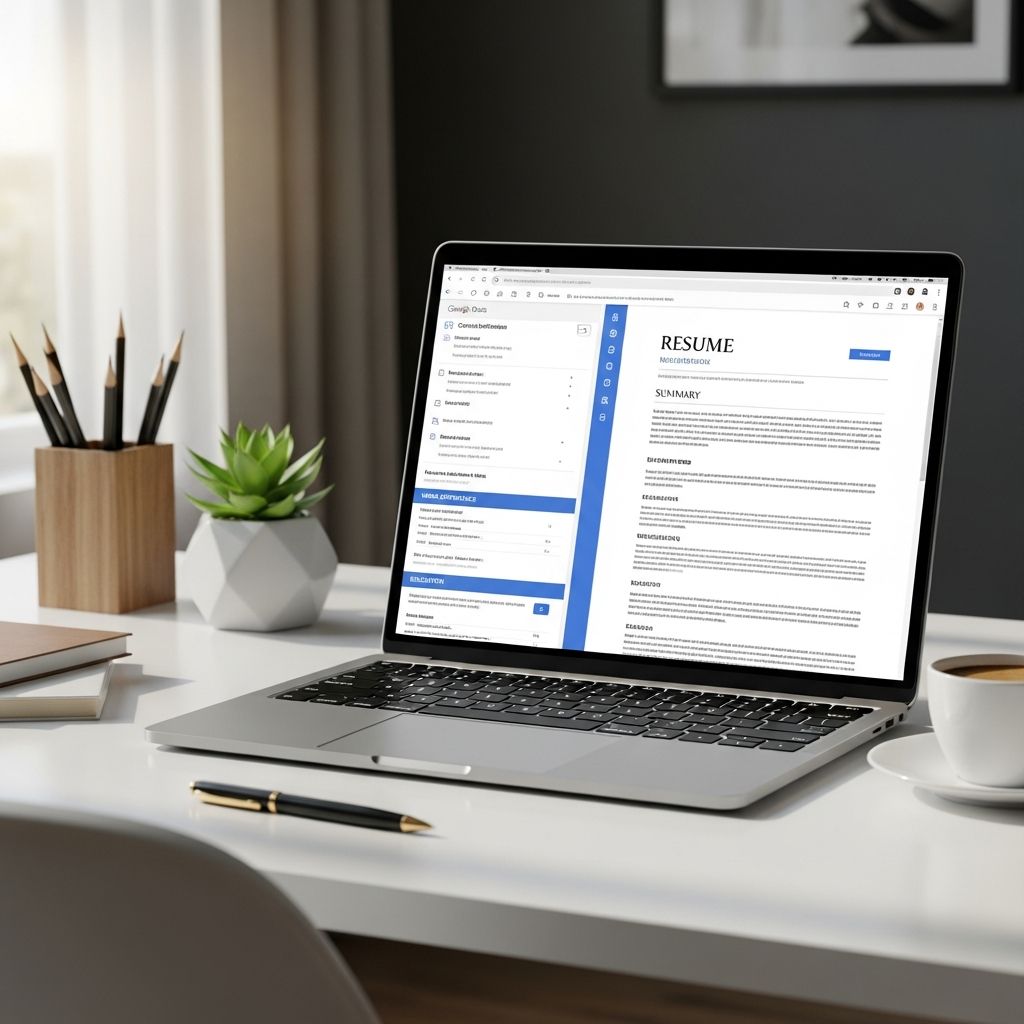
Google Docs resume templates offer a fast, free way to build a professional resume—as long as you know how to choose the right layout and customize it strategically. This guide walks you through every step, from picking a template to optimizing content for hiring managers and applicant tracking systems (ATS).
Why Use Google Docs for Your Resume?
Google Docs is more than a word processor—it is a collaboration and formatting tool that can make resume creation simpler and more consistent.
- Free and accessible: You only need a Google account to access built-in templates.
- Cloud-based: Your resume is stored online, so you can update and download it from any device.
- Easy sharing: Share via link for feedback or export to PDF/Word for applications.
- Consistent formatting: Templates provide preset styles that help keep spacing, fonts, and headings uniform.
Because most recruiters review resumes quickly, clear formatting and scannability are critical.
Understanding Resume Structures Before Picking a Template
Before you click on a template, decide which resume structure fits your career story. Common formats include:
- Reverse-chronological: Lists roles from most recent to oldest; ideal for a steady career path and preferred by most recruiters.
- Functional (skills-based): Organizes content around skills and capabilities, useful for career changers or those with gaps.
- Combination (hybrid): Mixes a skills section with a detailed work history, helpful when you have both strong skills and solid experience.
Most Google Docs templates are naturally reverse-chronological, but with minor edits, you can adapt them to functional or hybrid formats.
How to Access Google Docs Resume Templates
To open the built-in templates in Google Docs, follow these steps:
- Open Google Drive and click New > Google Docs.
- Select From a template to view the template gallery.
- Scroll to the Resumes section to see available designs.
- Click any template to create your editable copy.
Once opened, you can change fonts, colors, and sections while keeping the underlying layout.
Choosing the Right Google Docs Template for Your Career Stage
Not every template fits every job. Use these guidelines to narrow your options:
For Students and Recent Graduates
- Look for layouts with space for education, projects, and activities.
- Ensure there is room for bullet points describing campus roles or internships.
- Move the education section higher on the page if that is your strongest asset.
For Mid-Career Professionals
- Choose a template with a prominent experience section and space for multiple roles.
- Prioritize designs that highlight a professional summary and key skills near the top.
- Avoid overly stylized templates that may confuse ATS or distract from content.
For Career Changers
- Select a template with a flexible top section where you can emphasize a summary and skills over chronology.
- Consider moving skills and relevant projects above older experience to show transferability.
- Use headings like “Relevant Experience” or “Selected Projects” to group content around your target field.
Design Principles for ATS-Friendly Google Docs Resumes
Many employers use applicant tracking systems to screen applications before a human sees them. To make your Google Docs template ATS-ready, follow these design rules:
- Use standard fonts like Arial, Calibri, Times New Roman, or Helvetica for readability and ATS compatibility.
- Keep the layout simple: Avoid text boxes, columns, and graphics that ATS tools may misread.
- Use descriptive headings such as “Experience,” “Education,” and “Skills” so software and recruiters quickly understand each section.
- Save as PDF or DOCX depending on the employer’s instructions; both are usually accepted by modern systems.
Core Sections Every Google Docs Resume Should Include
Regardless of the template you choose, certain sections are expected on a professional resume.
| Section | Purpose | Key Tips |
|---|---|---|
| Contact Information | Tells employers how to reach you. | Include name, phone, email, city/metro, and optional LinkedIn or portfolio. |
| Professional Summary | Snapshot of your value and focus. | 2–3 concise sentences with role, years of experience, and key strengths. |
| Experience | Shows your impact and career progression. | Use bullet points, action verbs, and results-focused metrics. |
| Skills | Highlights technical and transferable abilities. | Match skills to the job description; avoid long generic lists. |
| Education | Provides academic background. | List degree, institution, location, and graduation date. |
Customizing the Template: Step-by-Step
Once you have chosen a design, personalize it so it reflects your achievements and aligns with the job posting.
1. Start With a Clear Professional Summary
The summary is your first opportunity to sell your value. Research shows that recruiters scan resumes quickly, so this section must convey your main message efficiently.
- State your target role or field.
- Include your experience level (e.g., “5+ years,” “entry-level”).
- Highlight 3–4 key strengths relevant to the posting.
- Avoid generic clichés like “hardworking” or “team player” without context.
2. Optimize the Experience Section With Bullet Points
Each job entry should typically contain 2–6 bullet points that emphasize impact.
- Begin each bullet with a strong action verb such as “led,” “implemented,” “analyzed,” or “designed.”
- Include numbers whenever possible to quantify results (e.g., increases, savings, time reductions).
- Prioritize bullets that align with the target job’s requirements and keywords.
- Use present tense for your current role and past tense for previous roles.
3. Align the Skills Section With the Job Posting
Hiring guidance consistently recommends tailoring your resume to each posting by mirroring key terms that match your background.
- Scan the job description for repeated skills and technologies.
- List relevant hard skills (software, tools, languages) and key soft skills (leadership, communication) that you can demonstrate with experience.
- Avoid keyword stuffing; only include skills you can confidently discuss in an interview.
4. Position the Education Section Strategically
- If you are early in your career, place education near the top to showcase degrees, honors, or relevant coursework.
- If you are experienced, put education after work history to keep the focus on your professional impact.
- Avoid listing high school if you have a college degree, unless specifically requested.
Formatting Best Practices in Google Docs
Good formatting makes your resume easy to skim, both on screen and on paper.
- Font size: Use 10–12 pt for body text and slightly larger for headings.
- Consistency: Apply the same font, bullet style, and date format throughout the document.
- White space: Keep margins around 0.5–1 inch and avoid cramming too much text.
- Length: Stick to one page for most candidates with under 10 years of experience; two pages may be appropriate for senior roles.
- File naming: Use a professional file name such as Firstname-Lastname-Resume.pdf.
Common Mistakes When Using Google Docs Templates
Templates are helpful, but certain shortcuts can hurt your candidacy.
- Leaving placeholder text: Ensure every sample bullet and generic line is replaced with your own content.
- Over-customizing the design: Excessive colors, icons, or columns can reduce readability and ATS compatibility.
- Copy-pasting job descriptions: Your resume should describe what you did, not repeat employer-written responsibilities.
- Inconsistent dates and formatting: Mixing date styles or bullet styles can look sloppy.
- Including irrelevant details: Old jobs or unrelated coursework can distract from relevant experience.
Tailoring a Single Template for Multiple Applications
You do not need a new template for every job, but you do need targeted versions of your resume.
- Create a master resume in Google Docs with your full experience and skill list.
- For each application, duplicate the file and trim to the most relevant roles and bullets.
- Adjust your summary, top skills, and the first few bullets under each role to reflect the specific posting.
- Save tailored versions separately so you can track what you sent to each employer.
Quick Pre-Submission Checklist
Before you download and submit your Google Docs resume, review this checklist:
- All placeholder text has been replaced with your own information.
- There are no spelling or grammatical errors (use Docs Spell Check and read aloud).
- Headings and font styles are consistent throughout.
- The resume includes relevant keywords from the job posting used naturally in context.
- The file type matches the employer’s instructions (PDF or DOCX).
Frequently Asked Questions (FAQs)
Q: Are Google Docs resume templates acceptable to employers?
Yes. Employers primarily care about clarity, relevance, and professionalism. A well-edited Google Docs template that highlights your achievements and is easy to read is just as acceptable as a resume created in other software, provided it follows standard formatting and is ATS-friendly.
Q: Do I need to pay for a premium resume template?
No. Free Google Docs templates can be highly effective when customized with strong content. Paid templates mainly add alternative designs. Focus first on tailoring your experience, using strong action verbs, and aligning your skills with the job description.
Q: Which file format should I choose when exporting my resume?
Most employers accept PDFs, and they preserve the layout you created. However, some applicant tracking systems may prefer DOCX files. Follow the instructions in the job posting; if none are given, PDF is generally a safe choice.
Q: How often should I update my Google Docs resume?
Update your resume each time you gain a new role, promotion, certification, or measurable accomplishment. Many career experts recommend revisiting your resume every few months so your achievements remain current and easier to recall accurately.
Q: Can I use the same Google Docs resume for different industries?
You can reuse the same underlying template, but you should maintain separate tailored versions for different industries or job types. Each version should emphasize the experiences, skills, and keywords most relevant to that field or role.
References
- The Best Resume Format for 2025 (Templates & Examples) — ResumeGenius. 2024-11-05. https://resumegenius.com/blog/resume-help/resume-format
- 10 Resume Writing Tips To Help You Land a Position — Indeed Editorial Team. 2024-03-15. https://www.indeed.com/career-advice/resumes-cover-letters/10-resume-writing-tips
- Current Resume Trends for 2025 — ResumeBuilder.com. 2024-10-02. https://www.resumebuilder.com/career-center/resume-trends/
- What’s the Best Resume Format in 2025? — Johnson & Johnson Careers. 2024-06-18. https://www.careers.jnj.com/en/employee-stories/career-tips/what-s-the-best-resume-format-in-2025/
- Create a Strong Resume — Harvard University Mignone Center for Career Success. 2023-09-01. https://careerservices.fas.harvard.edu/resources/create-a-strong-resume/
- 16 Top Resume Tips to Help You Land a Job in 2026 — Coursera Career Resources. 2024-08-12. https://www.coursera.org/articles/resume-tips

Medha Deb is an editor with a master's degree in Applied Linguistics from the University of Hyderabad. She believes that her qualification has helped her develop a deep understanding of language and its application in various contexts. Medha specializes in the areas of beauty, health, sports, and wellness and is committed to ensuring that the content on the website is…