
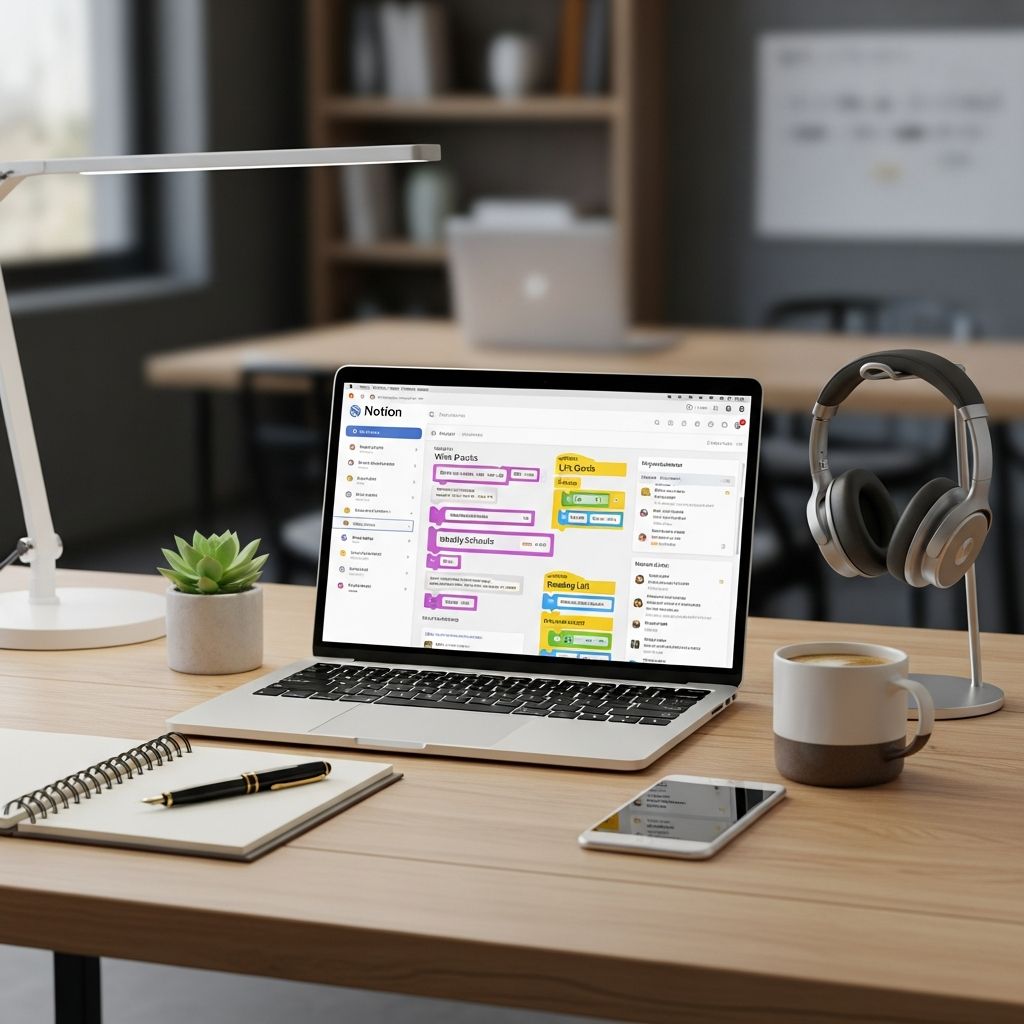
Notion has evolved from a simple note-taking tool into a powerful, all-in-one workspace for writing, planning, task management, wikis, and collaboration. When you understand its building blocks and workflows, you can design a system that matches how you think and work instead of forcing yourself into rigid software.
This guide walks through how to turn Notion into a practical operating system for your career and personal life—without needing to be a tech expert or productivity guru.
Why Notion Works as a Personal and Team Hub
At its core, Notion combines notes, documents, databases, and project management into one flexible interface. According to Notion’s own description, it is a single space where you can think, write, and plan—whether that is for a personal project or running an entire company.
- All-in-one workspace: Notes, docs, tasks, and wikis live in one place, reducing app-switching and context loss.
- Block-based editing: Everything you add—text, images, tasks, databases—is a “block” you can drag, rearrange, or nest.
- Structured yet flexible: A single page can start as simple notes and grow into a database-backed system as your needs change.
- Collaboration-friendly: Real-time editing, comments, and mentions make it easier to keep everyone aligned on projects.
This flexibility is why Notion is used for everything from personal journals to complex project portfolios for teams of thousands.
Step 1: Clarify What You Want Notion to Do
Before you add pages and templates, define what role Notion should play. This prevents a cluttered workspace that feels overwhelming.
Consider which of these goals matter most to you right now:
- Capture and organize notes and ideas
- Track tasks and to-dos across work and life
- Manage projects and deadlines with more structure
- Build a searchable knowledge base or personal wiki
- Centralize team documentation and meeting notes
Pick one or two priorities as your starting focus. You can expand later as your comfort with Notion grows.
Step 2: Understand Notion’s Core Building Blocks
Once you know your goals, learning a few key Notion concepts helps you design pages that work long-term.
Pages and Subpages
A page is Notion’s basic container. You can create pages for areas of your life (Work, Personal), for specific projects, or for topics like “Career Development.” Pages can contain subpages, letting you build a nested hierarchy.
- Create a top-level page for each major area: for example, “Work OS,” “Life Admin,” “Learning.”
- Inside each, add subpages such as Projects, Tasks, Notes, or Resources.
Blocks
Within a page, everything is a block—paragraphs, headings, checklists, toggles, databases, images, embeds, and more. You can mix and match to design layouts that fit how you think.
- Use headings to structure long pages.
- Add toggles to tuck away supporting details and keep the page scannable.
- Use callout blocks to highlight key decisions or instructions.
Databases
Databases turn Notion from a note app into a light project management and knowledge system. A database is simply a list of items—tasks, projects, articles—with properties like due date, status, tags, or owner.
Databases can be viewed in multiple ways:
- Table: Spreadsheet-style overview of items and properties.
- Board: Kanban-style columns (e.g., To Do / Doing / Done).
- Calendar: Items plotted by dates such as due dates.
- List or Gallery: Clean, card-like views for reading and browsing.
| Element | Best For | Example Use |
|---|---|---|
| Page | High-level areas or documents | “Work Hub,” “Personal Journal” |
| Subpage | Topics or projects inside areas | “Marketing Plan,” “House Move” |
| Block | Content layout on a page | Headings, to-do lists, callouts |
| Database | Structured collections of items | Tasks, projects, reading list |
Step 3: Design a Simple Home Dashboard
A dashboard acts as your control center—one page that gives you quick access to what matters each day. Notion is frequently used in this way as a central workspace to connect notes, tasks, and projects.
On your home page, you might include:
- A short today section with your top 3 priorities.
- Links to key pages: Work, Personal, Projects, Knowledge Base.
- A database view of tasks due today or this week.
- A quick capture area for new ideas, notes, or links.
Keep this dashboard lean at first. Its job is to reduce friction—not to impress anyone with complexity.
Step 4: Build a Practical Task System
Notion includes task management features that many teams use for project tracking and to-do lists. You can mirror the same simplicity for your personal system.
Create a Tasks Database
Set up one master tasks database that captures every to-do, regardless of context. Helpful properties include:
- Name: Clear, action-oriented task description.
- Status: Not Started, In Progress, Done.
- Due date: Optional, but useful for time-bound work.
- Area: Work, Personal, Learning, etc.
- Priority: High, Medium, Low.
Once the database exists, create multiple views:
- A Today filter showing tasks due today or flagged as a priority.
- A Kanban board by Status to visualize flow from Not Started to Done.
- A Work filter that hides personal tasks during work hours, and vice versa.
Connect Tasks to Projects
For bigger goals, create a separate Projects database with properties such as status, owner, and target date. Relate the Tasks and Projects databases so that each task can be linked to one project. This makes it easier to review everything related to a project in one place and is similar to how teams use Notion to manage complex workspaces.
Step 5: Turn Notion Into a Knowledge Base
Many organizations use Notion as an internal wiki or knowledge base to keep documentation and institutional knowledge accessible. You can apply the same idea to your own career and life.
Create a Personal Wiki
Start a top-level page called something like “Knowledge” or “Wiki.” Inside it, add subpages for recurring topics:
- Career: performance reviews, goals, accomplishments, feedback.
- Skills & Learning: course notes, certifications, reading summaries.
- Life Admin: finances, home maintenance logs, travel checklists.
Because Notion allows you to link between pages, you can treat this as a hyperlinked web of information, similar to a private encyclopedia tailored to your life.
Use Databases for Repeating Information
For content you track repeatedly—like books, articles, or useful links—a database works better than scattered notes.
- Reading List: Track books or articles with properties like topic, status (To Read, Reading, Finished), and key takeaways.
- Resources Library: Save links to tutorials, tools, or reference documents with tags by skill or project.
This approach mirrors how companies build shared knowledge bases and FAQs using Notion’s database features.
Step 6: Collaborate With Your Team in Notion
Notion is widely used by teams because it supports shared workspaces, permissions, and collaboration tools such as comments.
Shared Project Spaces
Create shared pages or databases for:
- Team Projects: With sections for goals, timelines, and meeting notes.
- Team Wiki: Onboarding guides, standard operating procedures, and policies.
- Meeting Notes: One database where each entry is a meeting, including agenda, decisions, and action items.
Because Notion supports real-time editing and comments, teammates can collaborate without relying exclusively on email or separate chat threads.
Comments and Mentions
Use comments to discuss specific blocks or pages and @mentions to notify relevant people. This keeps conversations tied directly to the work they reference and helps maintain context, a benefit that has been highlighted as a key productivity feature of Notion comments.
Step 7: Use Notion AI as a Productivity Booster (Optional)
Recent versions of Notion include built-in AI features that can assist with writing, summarizing, and analyzing content inside your workspace. According to Notion’s official materials, this makes it an “AI workspace” that can help automate busywork and search across your information.
Common Ways to Use Notion AI
- Drafting content: Generate outlines for documents, emails, or project briefs based on short prompts.
- Summarizing notes: Turn long meeting notes into concise lists of decisions and action items.
- Rewriting text: Adjust tone, shorten or expand content, or clarify wording while keeping your own ideas.
- Database insights: Create AI-generated summaries or keywords for entries in your databases, such as research notes or customer interviews.
Some plans require an additional fee for AI features, which reviewers have noted as a trade-off against the added value.
Step 8: Keep Your Workspace Sustainable
Notion’s flexibility is a strength, but it can also tempt you to overbuild. A sustainable system is one you actually maintain. A few habits help:
- Weekly review: Spend 15–30 minutes reviewing tasks, archiving completed projects, and cleaning up clutter.
- Consistent naming: Use clear titles and a predictable naming pattern for projects (e.g., “Client – Project – Q1 2026”).
- Limit templates: Start with very simple templates and only add complexity when you feel clear friction.
- Use search: Notion’s built-in search makes it easy to find content across your workspace, especially in large wikis and project hubs.
Practical Use Cases to Inspire Your Setup
Below are a few sample scenarios that show how you might combine pages, databases, and collaboration features.
Career Development Hub
- Database of roles you are interested in, with links, requirements, and application status.
- Page for your achievements log to prepare for reviews and salary conversations.
- Learning tracker for courses, certifications, and skills you want to build.
Team Project Headquarters
- Projects database with status, owners, milestones, and related documents.
- Shared meeting notes database that links to projects and tasks.
- Wiki with SOPs, guidelines, and onboarding pathways for new hires.
Life Management Space
- Household maintenance checklist and recurring tasks.
- Finance snapshot with links to key accounts, budgets, and planning documents.
- Travel planner with packing lists, itineraries, and important contacts.
Frequently Asked Questions About Using Notion
Q: Is Notion too complex for beginners?
A: Notion can look intimidating, but you can start with a few simple pages and lists. Many users begin with a basic notes page and a single tasks database, then gradually add structure as their needs grow.
Q: How is Notion different from a traditional note-taking app?
A: Traditional note apps focus mainly on text documents. Notion combines notes with databases, task management, wikis, and collaboration tools, allowing you to build full workflows rather than only storing information.
Q: Can I use Notion for both personal and work projects?
A: Yes. Notion’s flexible pages and databases make it suitable for personal planning, work projects, and team collaboration within one workspace. You can separate areas using top-level pages, permissions, or even multiple workspaces.
Q: Do I need to pay for Notion to get value from it?
A: Many core features, including pages, databases, and personal task management, are available on the free plan. Paid tiers add benefits like higher usage limits, advanced permissions, and expanded collaboration features for teams.
Q: What about privacy and security of my data?
A: Notion describes itself as a connected workspace used by millions of people and organizations and highlights features such as permission controls and enterprise-grade security for higher-tier plans. For highly sensitive data, review Notion’s official security documentation and consider your organization’s compliance requirements.
References
- What is Notion? — Notion Labs, Inc. 2024-02-01. https://www.notion.com/help/guides/what-is-notion
- Your connected workspace for notes, docs & tasks — Notion Labs, Inc. 2024-03-15. https://www.notion.com/personal
- Notion: The AI workspace that works for you — Notion Labs, Inc. 2024-05-10. https://www.notion.com
- What is Notion? Features, benefits, and alternatives — Minimum Code. 2024-01-20. https://www.minimum-code.com/tools-directory/notion
- Notion Review: More than Just a Note-Taking App — UC Today. 2024-06-05. https://www.uctoday.com/unified-communications/notion-review-more-than-just-a-note-taking-app/
- 40+ Notion features for efficiency and aesthetics (2024) — Super.so. 2024-04-18. https://super.so/blog/40-notion-features-for-efficiency-and-aesthetics-2024
- Notion AI Features & Capabilities You Should Know in 2025 — Kipwise. 2025-01-05. https://kipwise.com/blog/notion-ai-features-capabilities
- What Is Notion? How I Use It To Organize My Workflow — The Good Trade. 2023-11-14. https://www.thegoodtrade.com/features/what-is-notion/

- Integrated M.A. in Applied Linguistics, University of Hyderabad
- 5+ years in editorial, instructional, SEO, and research-based writing
Sneha is a relationships and lifestyle writer with a strong foundation in applied linguistics and certified training in relationship coaching. She brings over five years of writing experience to theskillvault, crafting thoughtful, research-driven content that empowers readers to build healthier relationships, boost emotional well-being, and embrace holistic living. Her writing and insights reflect the belief that beauty, happiness, and wellness…