
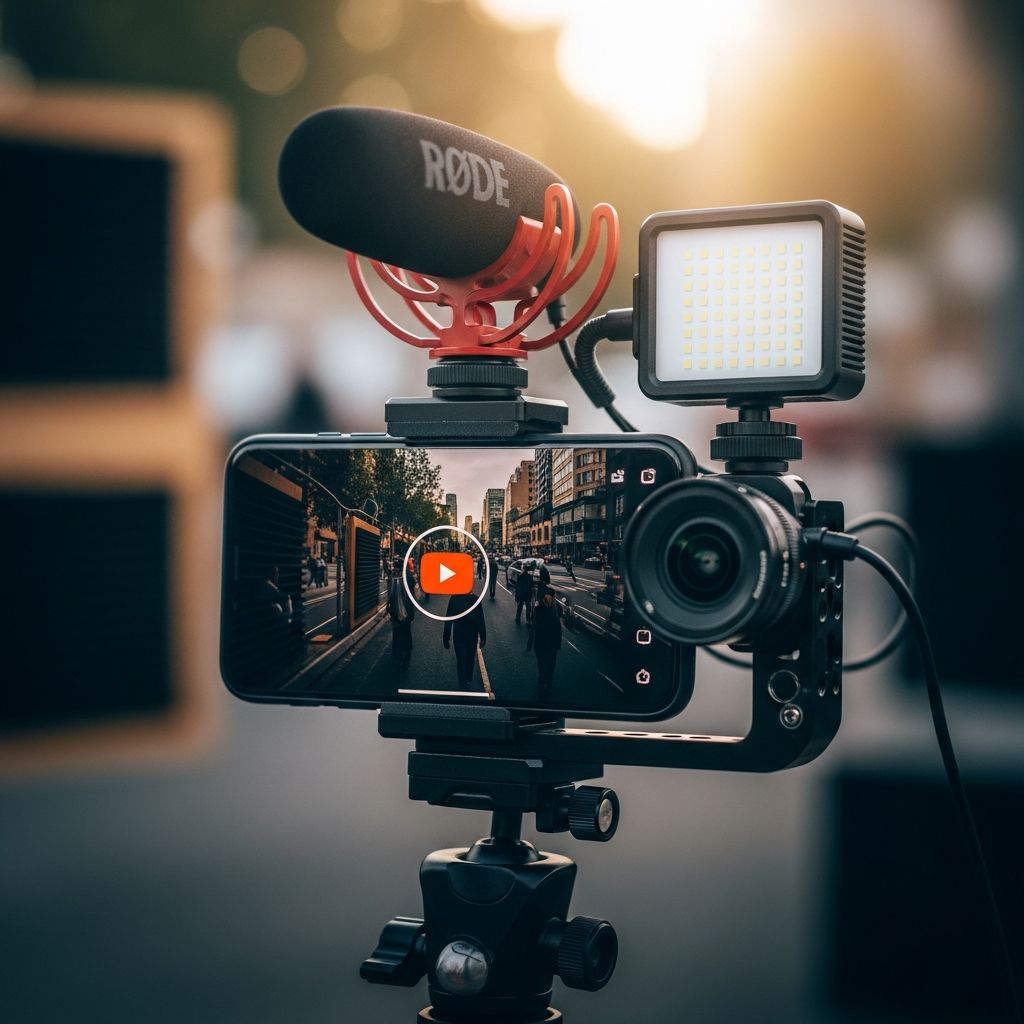
Creating compelling YouTube content no longer requires expensive cameras or studios. Modern smartphones pack powerful cameras capable of delivering broadcast-quality footage. This guide empowers you to produce, edit, and publish professional videos entirely from your device, saving time and money while focusing on what matters: your message.
Assessing Your Smartphone’s Filming Potential
Before diving in, evaluate your phone’s capabilities. Devices from 2022 onward, such as recent iPhones or Samsung Galaxy models, support 4K recording at 60fps with advanced stabilization. Even older models excel in 1080p, sufficient for most YouTube uploads. Test your camera app’s pro mode for manual controls over ISO, shutter speed, and focus to achieve cinematic results without additional hardware.
Key factors include sensor size for low-light performance and computational photography features like night mode. Android users benefit from apps like Open Camera for granular controls, while iOS offers built-in cinematic mode for shallow depth-of-field effects.
Essential Accessories for Mobile Creators
A few budget items elevate your setup dramatically. Prioritize these:
- Tripod or Stabilizer: Prevents shaky footage. Opt for adjustable models with phone mounts ($20–$40).
- External Microphone: Built-in mics pick up noise; lavalier or shotgun mics ($15–$50) ensure crisp audio.
- LED Lights: Portable ring lights or panels ($10–$30) provide consistent illumination.
- Gimbal: For dynamic shots, entry-level DJI Osmo Mobile starts at $100.
These tools address common pitfalls like instability and poor sound, making your videos appear polished.
Mastering On-Phone Filming Techniques
Filming is 80% of success. Follow these steps for pro-level shots:
- Choose the Right Orientation: Always shoot horizontally (16:9) for YouTube’s native format. Vertical works for Shorts but limits full videos.
- Optimal Camera Selection: Use the rear camera for superior resolution and lenses over the front-facing selfie cam.
- Frame Composition: Apply the rule of thirds—enable gridlines in your camera app. Place subjects off-center for dynamic visuals. Include leading lines and natural foregrounds for depth.
- Lighting Mastery: Face a window for soft natural light or use golden hour outdoors. Avoid harsh overhead lights; diffuse with white sheets if needed. Key light from the front, fill from the side, backlight for separation.
- Focus and Exposure Lock: Tap and hold on your subject to lock. Adjust exposure slider for balanced brightness without fluctuations.
Shoot in 4K/30fps for flexibility in editing, or 1080p/60fps for smooth motion. Record B-roll—close-ups, transitions—to enrich storytelling. Create a shot checklist: wide establishing shots, medium close-ups, over-the-shoulders.
| Setting | Recommended for YouTube | Why? |
|---|---|---|
| Resolution | 1080p or 4K | Balances quality and file size |
| Frame Rate | 24–30fps | Cinematic feel, YouTube standard |
| Bitrate | Highest available | Reduces compression artifacts |
| Format | H.264/HEVC | Universal compatibility |
Audio Optimization on Mobile Devices
Viewers forgive average visuals but abandon poor audio. Position mics close to your mouth, 6–12 inches. Speak clearly at consistent volume. Apps like Voice Record Pro offer wind noise reduction. For interviews, use wireless lav mics paired via Bluetooth.
Test recordings: Clap to sync audio/video later. Monitor levels to avoid peaking (red zones). Quiet environments or acoustic treatments like blankets minimize reverb.
Crafting Eye-Catching Thumbnails on Your Phone
Thumbnails drive 70% of clicks. Use apps like Canva or PicsArt:
- Start with a high-res photo of your face showing emotion (surprise, excitement).
- Add bold text: 3–5 words, large sans-serif font (e.g., Impact). Contrasting colors: yellow text on black.
- Incorporate graphics: arrows, emojis sparingly.
- Dimensions: 1280x720px, under 2MB.
Design vertically first for mobile previews, then crop. A/B test thumbnails in YouTube Studio.
Efficient Video Editing Apps and Workflows
Mobile editors like CapCut, InShot, or VN Video Editor rival desktop software. Free tiers suffice for beginners.
Basic Workflow:
- Import clips; trim unnecessary parts.
- Arrange timeline: Hook in first 5 seconds, main content, call-to-action end screen.
- Add transitions: Subtle fades, not zooms.
- Text overlays: Keywords on screen for retention.
- Music: Royalty-free from YouTube Audio Library, 20% volume.
- Color correction: Boost contrast, match clips.
- Export: 1080p, high bitrate.
Pro tip: Save projects as drafts. Use speed ramps for emphasis. For advanced users, LumaFusion ($30) or Adobe Premiere Rush offer multi-track audio.
Advanced Tricks for Cinematic Smartphone Videos
Elevate with:
- Log Profile: Flat color for post-grading (if supported).
- Anamorphic Lenses: Clip-ons for widescreen ($20).
- Drone Shots: Mini drones like DJI Mini for aerials.
- Slow-Mo: 120–240fps bursts for impacts.
Practice rack focus: Shift between subjects by tapping. Use ND filters for bright outdoors to maintain shutter at 1/50s (180-degree rule).
Seamless Uploading and Optimization from Phone
Charge fully, connect to WiFi. In YouTube app:
- Tap camera icon > Upload video.
- Add title (under 60 chars, keywords front-loaded), description (timestamps, links), tags (15–20 relevant).
- Custom thumbnail.
- End screen: Subscribe, next video.
- Schedule or publish.
Use YouTube Studio app for analytics, community posts. Batch upload for consistency.
Common Pitfalls and Fixes
| Issue | Solution |
|---|---|
| Shaky Video | Tripod + gimbal |
| Muddy Audio | External mic, quiet room |
| Overexposed | Lock exposure, ND filter |
| Boring Thumbnails | High-contrast faces + text |
| Low Retention | Strong hook, visuals match audio |
Frequently Asked Questions
What’s the best free editing app for phone?
CapCut or InShot for intuitive interfaces and effects suitable for YouTube.
Do I need 4K for YouTube success?
No, 1080p performs well; 4K aids editing flexibility.
How to improve low-light phone videos?
Use night mode, LED lights, or post-process with AI enhancers.
Can I monetize phone-filmed videos?
Yes, quality content trumps gear; many top creators started this way.
What frame rate for talking-head videos?
30fps for natural motion.
References
- Faire des vidéos YouTube avec son téléphone — StrategieVideo. 2023. https://strategievideo.com/comment-faire-des-videos-youtube-avec-son-telephone-de-a-a-z-guide-du-debutant/
- Is Your Smartphone Good Enough for YouTube? — Subscribr.ai. 2025. https://subscribr.ai/p/smartphone-youtube-filming-guide
- MASTER Smartphone Videography: BEGINNER to… — YouTube (Simon Horrocks). 2024-01-15. https://www.youtube.com/watch?v=OEBwp7gSh2w
- Tips to film with mobile — YouTube Help (Google). 2024. https://support.google.com/youtube/answer/12948118?hl=en
- How to Film like a PRO with Android Smartphones — MyMooc. 2024. https://www.my-mooc.com/en/video/how-to-film-like-a-pro-with-android-smartphones-updated-guide-0e35cac6-ab11-4084-a4d2-78fcb761f8f5

- Integrated M.A. in Applied Linguistics, University of Hyderabad
- 5+ years in editorial, instructional, SEO, and research-based writing
Sneha is a relationships and lifestyle writer with a strong foundation in applied linguistics and certified training in relationship coaching. She brings over five years of writing experience to theskillvault, crafting thoughtful, research-driven content that empowers readers to build healthier relationships, boost emotional well-being, and embrace holistic living. Her writing and insights reflect the belief that beauty, happiness, and wellness…