
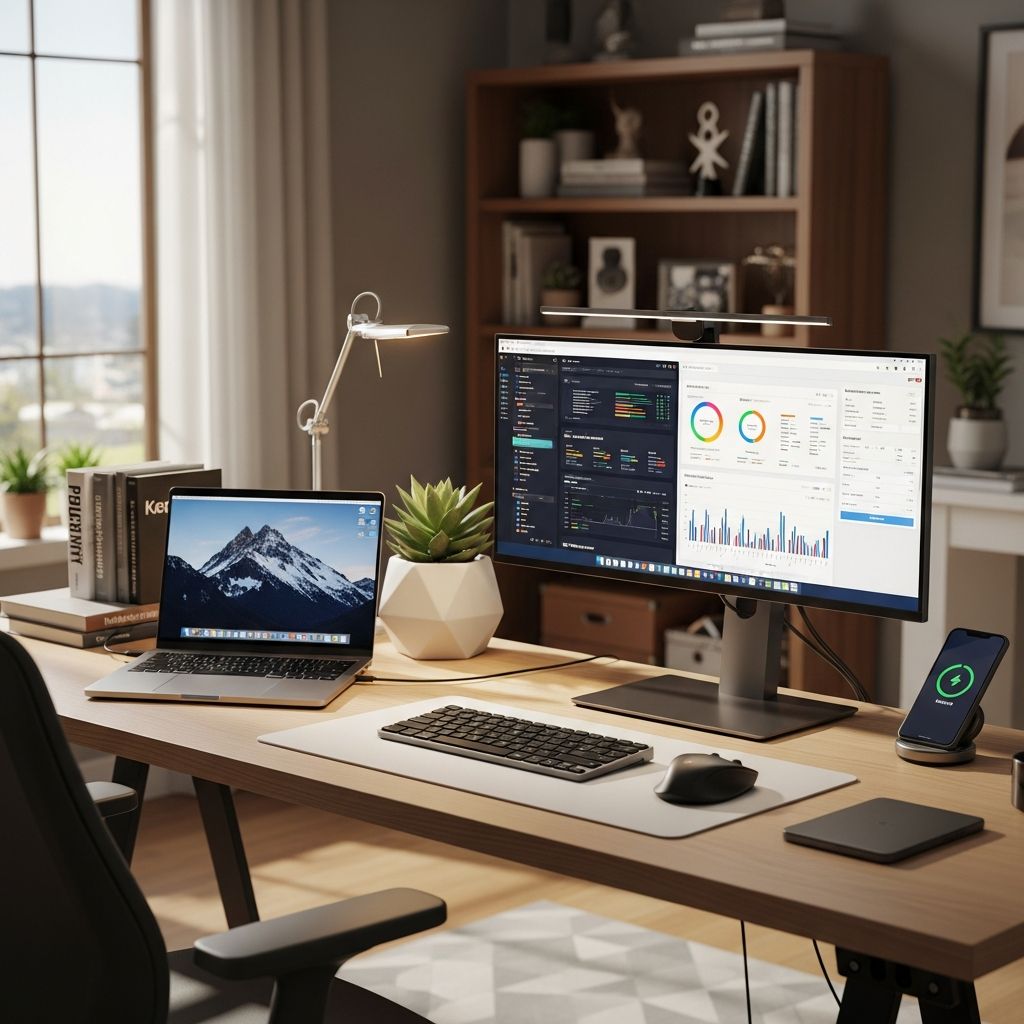
Creating an effective home workstation goes beyond placing a laptop on any available surface. It involves thoughtful integration of furniture, technology, and habits to foster productivity while safeguarding health. This guide explores key elements for building a space that adapts to your needs, drawing from proven principles of ergonomics and modern setups.
Establishing a Dedicated Workspace
A dedicated area signals to your brain that it’s time to work, helping maintain work-life boundaries. Choose a quiet corner or spare room, ensuring it’s solely for professional tasks to minimize distractions and ease mental transitions at day’s end.
- Select a spot with natural light to reduce eye strain and elevate mood.
- Avoid high-traffic zones like kitchens or bedrooms to preserve focus.
- Invest in room dividers or plants if space is shared for subtle separation.
Consistency in location builds routines, making it simpler to enter ‘work mode’ quickly.
Core Ergonomic Principles for Comfort
Ergonomics prevents strain from prolonged sitting or poor posture. According to health experts, proper setup aligns your body to minimize musculoskeletal risks.
| Body Part | Ideal Position | Benefits |
|---|---|---|
| Chair | Feet flat, knees at 90 degrees, back supported | Reduces lower back pressure |
| Monitor | Top at eye level, arm’s length away | Prevents neck tilt and eye fatigue |
| Keyboard/Mouse | Elbows at 90-100 degrees, wrists straight | Averts carpal tunnel risks |
Adjustable elements ensure personalization. Feet not reaching the floor? Use a footrest. Monitor too low? Employ arms or risers for alignment.
Selecting the Right Desk Foundation
The desk anchors your setup. Standing desks promote movement, countering sedentary habits. Electric models allow seamless height switches from sitting (28-30 inches) to standing (36-42 inches).
- Opt for sturdy frames supporting 150+ pounds for stability with monitors.
- Choose surfaces at least 60×30 inches for dual screens and peripherals.
- Consider anti-fatigue mats for standing comfort during extended sessions.
Budget options from modular kits offer customization without high costs, while premium versions include cable grommets for tidiness.
Monitor and Display Strategies
Multiple screens expand workflow. A primary 27-34 inch ultrawide handles multitasking, with secondary displays for references.
- Curved ultrawides reduce eye movement for immersive viewing.
- VESA-compatible mounts free desk space and enable precise positioning.
- Pair with blue-light filters or night modes to protect vision.
For limited areas, portable secondary screens attach via USB-C, doubling as laptop extensions.
Essential Peripherals for Enhanced Input
Upgrade from laptop keyboards to mechanical or ergonomic models for tactile feedback and reduced fatigue. Wireless mice with customizable buttons streamline navigation.
- Mechanical keys suit typists; low-profile for minimalists.
- Vertical mice promote neutral wrist angles, easing RSI symptoms.
- Wrist rests with gel padding support during long sessions.
Docks consolidate connections, adding ports, Ethernet, and charging via one cable—ideal for laptop users.
Audio and Video Upgrades
Clear communication elevates virtual meetings. External webcams with 1080p+ resolution and wide angles outperform built-ins.
- Noise-canceling mics filter backgrounds for professional calls.
- Adjustable arms keep mics unobtrusive yet accessible.
- Quality headphones block distractions, aiding deep work.
Streamers benefit from dynamic setups like KVM switches for multi-device control.
Mastering Cable Organization
Hidden cables create calm visuals, reducing mental clutter. Under-desk trays and clips route wires efficiently.
- Power strips with surge protection mount beneath desks.
- Velcro ties bundle excess lengths neatly.
- LED-lit hubs illuminate ports in dim setups.
Strategic routing prevents tripping hazards and simplifies troubleshooting.
Illumination for Focus and Eye Health
Layered lighting combats shadows and glare. Desk lamps with adjustable arms target work zones, while bias lighting behind monitors reduces contrast strain.
- Neutral 4000K bulbs mimic daylight without harshness.
- Smart strips sync with routines via apps.
- Position sources to avoid screen reflections.
Ample light boosts alertness and accuracy during extended hours.
Decluttering and Storage Solutions
A minimalist surface sharpens concentration. Shelves, drawers, and organizers compartmentalize supplies.
- Monitor risers conceal cables while elevating displays.
- Desk pads protect surfaces and define zones.
- Wall-mounted pegboards hold rarely used items.
Weekly purges keep only essentials, fostering efficiency.
Tech Powerhouse: Computers and Docks
Match hardware to tasks. Laptops for portability; desktops for power-intensive work like editing.
- Thunderbolt docks expand connectivity for hybrid use.
- High-RAM configs handle multitasking seamlessly.
- SSD storage accelerates file access.
Multi-PC setups thrive with KVMs for shared peripherals.
Personalizing for Peak Productivity
Add greenery, art, or diffusers for inspiration without distraction. Noise machines or fans mask ambient sounds.
Experiment with layouts: L-shaped for corner maximization, or linear for simplicity. Track what enhances your flow.
Common Pitfalls to Avoid
- Ignoring adjustability, leading to fixed poor postures.
- Overloading desks, causing instability.
- Skipping breaks, amplifying ergonomic issues.
Frequently Asked Questions
What is the best desk height for ergonomics?
Elbows should form 90-100 degrees when typing, typically 28-30 inches sitting, 40+ standing. Adjust per your height.
Do I need a standing desk?
Not essential, but alternating positions every 30-60 minutes combats sedentary risks. Start with converters if budget-constrained.
How can I manage cables on a budget?
Use zip ties, adhesive clips, and under-desk baskets—effective without expense.
What’s a good starter monitor size?
27 inches balances space and utility for most, improving over laptop screens.
Should I use wireless peripherals?
Yes for flexibility, but ensure 2.4GHz or Bluetooth reliability to avoid lag.
References
- The Ultimate Home Office Setup Guide — Mistwire. 2023. https://mistwire.com/the-ultimate-home-office-setup-guide/
- Office ergonomics: Your how-to guide — Mayo Clinic. 2023-10-12. https://www.mayoclinic.org/healthy-lifestyle/adult-health/in-depth/office-ergonomics/art-20046169
- 10 Tips To Improve Your Desk Setup and Home Office! — YouTube (Tech channel). 2023. https://www.youtube.com/watch?v=vkB0LJUTgJk
- My Home Office Desk Setup — He Spoke Style. 2023. https://hespokestyle.com/desk-setup-ideas-home-office/
- The Ultimate Home Office Setup Guide — Minimal Desk Setups. 2022-02. https://www.minimaldesksetups.com/the-ultimate-home-office-setup-guide/

Medha Deb is an editor with a master's degree in Applied Linguistics from the University of Hyderabad. She believes that her qualification has helped her develop a deep understanding of language and its application in various contexts. Medha specializes in the areas of beauty, health, sports, and wellness and is committed to ensuring that the content on the website is…