
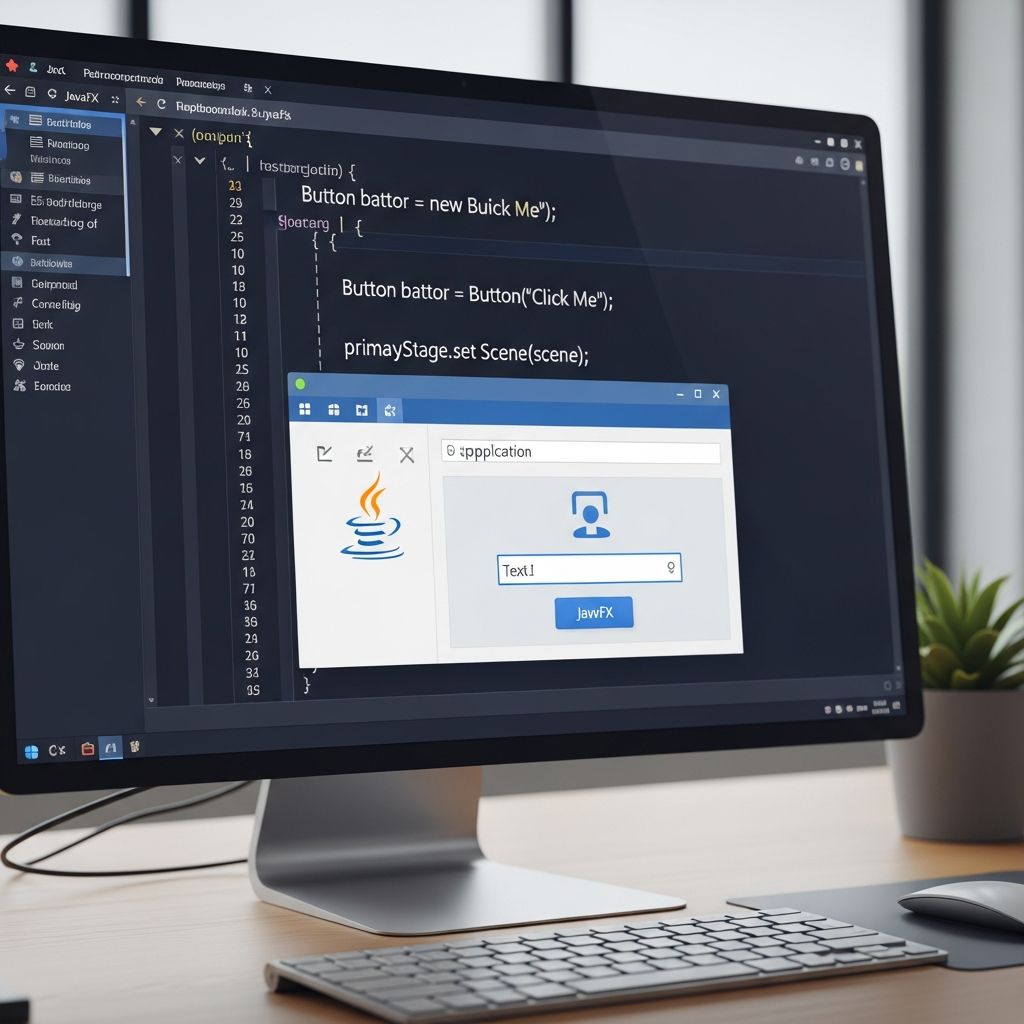
JavaFX represents the modern evolution of Java’s graphical user interface capabilities, offering developers powerful tools to build rich, cross-platform desktop applications. Unlike its predecessors AWT and Swing, JavaFX provides hardware-accelerated graphics, CSS styling, and FXML for declarative UI design, making it ideal for creating professional-grade applications that run seamlessly across Windows, macOS, and Linux.
Understanding JavaFX Fundamentals
The foundation of every JavaFX application rests on three core concepts: the Stage, Scene, and Scene Graph. The Stage serves as the main window container, analogous to a theater stage where all visual elements perform. The Scene defines the content displayed within that window, containing a hierarchical tree of UI nodes known as the Scene Graph.
JavaFX applications follow a structured lifecycle managed by the javafx.application.Application class. The process begins with the init() method for resource loading, followed by the crucial start(Stage primaryStage) method where the UI is constructed and displayed. The application remains active in a running state, processing user interactions until stop() is invoked for cleanup.
Setting Up Your JavaFX Development Environment
Before writing code, proper environment configuration is essential. JavaFX has been separated from the JDK since Java 11, requiring explicit inclusion as a module or library. For IDE users, popular options like IntelliJ IDEA, Eclipse, and NetBeans offer built-in JavaFX support through plugins or project templates.
- Download JavaFX SDK: Obtain the latest JavaFX SDK from the official OpenJFX website, ensuring compatibility with your JDK version.
- IDE Configuration: In IntelliJ, create a new JavaFX project and add the JavaFX library to module dependencies; NetBeans provides native JavaFX project templates.
- Module Path Setup: For Java 11+, configure VM options:
--module-path /path/to/javafx/lib --add-modules javafx.controls,javafx.fxml.
Building Your First JavaFX Window
Creating a basic window demonstrates JavaFX’s simplicity. Every application must extend Application and override the start() method. Here’s the minimal code structure:
import javafx.application.Application;import javafx.scene.Scene;import javafx.scene.control.Label;import javafx.stage.Stage;public class FirstWindow extends Application { @Override public void start(Stage stage) { Label label = new Label("Welcome to JavaFX!"); Scene scene = new Scene(label, 400, 300); stage.setTitle("My First JavaFX App"); stage.setScene(scene); stage.show(); } public static void main(String[] args) { launch(args); }}This code creates a window displaying a label. The launch(args) method initializes the JavaFX runtime and calls start() with the primary stage.
Adding Interactive Buttons and Event Handling
Static displays quickly become boring. True GUI applications respond to user actions through event handling. JavaFX supports multiple approaches: anonymous inner classes, lambda expressions, and method references.
Consider this enhanced example with a clickable button:
import javafx.application.Application;import javafx.event.ActionEvent;import javafx.event.EventHandler;import javafx.scene.Scene;import javafx.scene.control.Button;import javafx.scene.layout.StackPane;import javafx.stage.Stage;public class InteractiveApp extends Application { @Override public void start(Stage primaryStage) { Button btn = new Button("Click Me!"); btn.setOnAction(e -> System.out.println("Button clicked!")); StackPane root = new StackPane(); root.getChildren().add(btn); Scene scene = new Scene(root, 300, 250); primaryStage.setScene(scene); primaryStage.setTitle("Interactive Button"); primaryStage.show(); } public static void main(String[] args) { launch(args); }}The lambda expression e -> System.out.println("Button clicked!") concisely handles the button click event, printing to console when activated.
Mastering Layout Management in JavaFX
JavaFX offers a rich collection of layout panes for organizing UI components. Choosing the right layout ensures responsive, professional-looking interfaces.
| Layout Type | Description | Use Case |
|---|---|---|
| StackPane | Stacks children on top of each other | Overlapping elements, splash screens |
| BorderPane | Five-region layout (top, bottom, left, right, center) | Main application frames |
| HBox/VBox | Horizontal/Vertical sequential arrangement | Toolbars, form fields |
| GridPane | Tabular grid arrangement | Forms, data tables |
Here’s a practical BorderPane example:
BorderPane root = new BorderPane();Button topBtn = new Button("Top");Button bottomBtn = new Button("Bottom");Button leftBtn = new Button("Left");Button centerBtn = new Button("Center");root.setTop(topBtn);root.setBottom(bottomBtn);root.setLeft(leftBtn);root.setCenter(centerBtn);Streamlining UI Design with Scene Builder
While programmatic UI construction offers maximum control, Scene Builder provides visual design capabilities that accelerate development. This drag-and-drop tool generates FXML files that separate UI structure from application logic.
- Launch Scene Builder and create a new FXML document
- Drag components from the Library palette to the Content view
- Configure properties in the Inspector panel
- Set fx:id and onAction fields for controller integration
- Export as FXML and load in your JavaFX application
Integration requires a controller class with annotated methods matching the onAction references:
public class HelloController { @FXML private void sayHello() { System.out.println("Hello from FXML!"); }}Enhancing Applications with Visual Elements
JavaFX excels in rich media integration. Beyond standard controls, developers can incorporate shapes, images, and animations.
- Shapes:
Line,Rectangle,Circlewith customizable stroke, fill, and binding properties - Images:
ImageViewsupports scaling, rotation, and effects - Effects: DropShadow, Glow, Blur for professional visual polish
Dynamic line example using property binding:
Line dynamicLine = new Line();dynamicLine.startXProperty().bind(pane.widthProperty().subtract(10));dynamicLine.endYProperty().bind(pane.heightProperty().subtract(10));Building Multi-Scene Applications
Real applications often require multiple views. JavaFX supports scene switching through stage scene reassignment:
Scene scene1 = new Scene(root1, 400, 300);Scene scene2 = new Scene(root2, 400, 300);btnSwitch.setOnAction(e -> primaryStage.setScene(scene2));For complex navigation, consider using a single stage with dynamic scene content or modal dialog stages.
JavaFX Development Best Practices
- Separate UI logic from business logic using MVC pattern
- Use FXML and controllers for maintainable code organization
- Leverage CSS for consistent styling across applications
- Implement proper resource cleanup in
stop()method - Test cross-platform rendering and behavior
Frequently Asked Questions
What is the difference between Stage and Scene in JavaFX?
A Stage is the top-level container (window), while a Scene contains the UI content hierarchy displayed within that stage.
Do I need Scene Builder for JavaFX development?
Scene Builder accelerates UI design but isn’t required. You can build complete applications programmatically.
How do I handle button clicks in JavaFX?
Use setOnAction(EventHandler) with lambda expressions or method references for clean event handling.
Can JavaFX applications access native desktop features?
Yes, through the javafx.application.Platform class and desktop integration APIs for file operations, clipboard, and system notifications.
Is JavaFX suitable for commercial applications?
Absolutely. JavaFX powers professional applications with hardware acceleration, CSS styling, and cross-platform deployment capabilities.
References
- 3 Hello World, JavaFX Style (Release 8) — Oracle Corporation. 2014-03-01. https://docs.oracle.com/javase/8/javafx/get-started-tutorial/hello_world.htm
- JavaFX tutorial part 1 – Getting started — SE-EDU. 2023-01-15. https://se-education.org/guides/tutorials/javaFxPart1.html
- JavaFX guide: Go graphical with Java — BellSoft. 2024-06-12. https://bell-sw.com/blog/javafx-guide-go-graphical-with-java/
- Graphical User Interfaces JavaFX GUI Basics — Stony Brook University (CSE114). 2022-09-20. https://www3.cs.stonybrook.edu/~pfodor/courses/CSE114/L14-JavaFXBasics.pdf
- JavaFX Tutorial — GeeksforGeeks. 2025-02-10. https://www.geeksforgeeks.org/java/javafx-tutorial/
- Getting Started with JavaFX — OpenJFX. 2025-11-01. https://openjfx.io/openjfx-docs/

- Integrated M.A. in Applied Linguistics, University of Hyderabad
- 5+ years in editorial, instructional, SEO, and research-based writing
Sneha is a relationships and lifestyle writer with a strong foundation in applied linguistics and certified training in relationship coaching. She brings over five years of writing experience to theskillvault, crafting thoughtful, research-driven content that empowers readers to build healthier relationships, boost emotional well-being, and embrace holistic living. Her writing and insights reflect the belief that beauty, happiness, and wellness…