
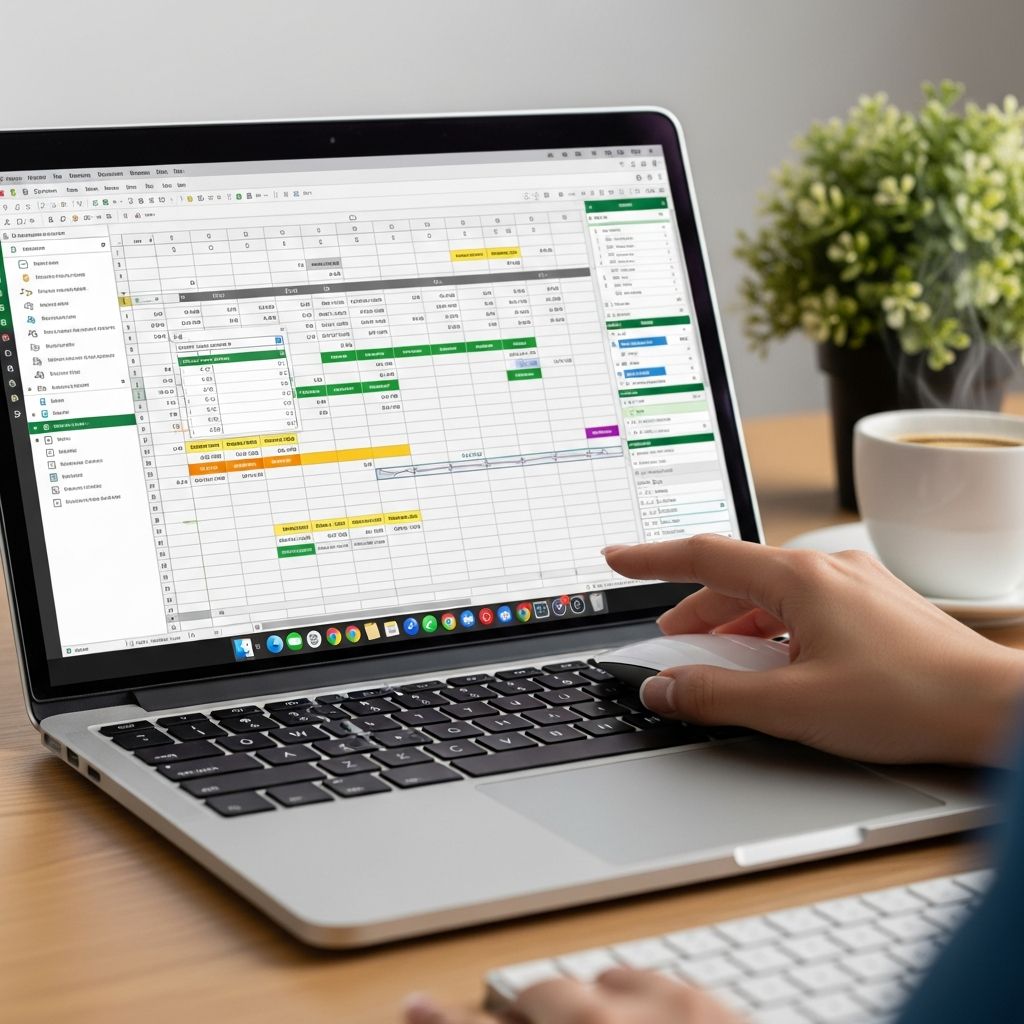
Excel remains a cornerstone tool for professionals handling data in 2026. Beyond basic entry and simple sums, it offers sophisticated capabilities that can drastically cut down analysis time and enhance accuracy. This guide reveals 20 lesser-known techniques, drawing from advanced functions, data manipulation tools, and automation features to elevate your spreadsheet skills.
Essential Advanced Formulas for Precision Analysis
Formulas form the backbone of Excel’s power. Moving past SUM and AVERAGE, advanced functions enable dynamic lookups, conditional logic, and financial calculations.
- INDEX MATCH Combo: Replace VLOOKUP’s limitations with INDEX MATCH for flexible two-way lookups. For instance, =INDEX(C3:E9,MATCH(B13,C3:C9,0),MATCH(B14,C3:E3,0)) retrieves data from any table position without column order restrictions.
- IF with AND/OR: Simplify nested IFs by combining with logical operators. Example: =IF(AND(C2>=C4,C2<=C5),C6,C7) checks multiple conditions cleanly.
- Dynamic SUM with OFFSET: Create adjustable ranges: =SUM(B4:OFFSET(B4,0,E2-1)) sums variable cells based on input, ideal for evolving datasets.
These formulas shine in financial modeling, where precision matters.
Text Manipulation Mastery
Handling strings efficiently prevents manual edits in large datasets.
- LEN and TRIM: LEN counts characters; TRIM removes extra spaces. Use =TRIM(A1) to clean imported data.
- CONCATENATE or & Operator: Join text: =A1 & “, ” & B1 creates “New York, NY” dynamically.
- LEFT, MID, RIGHT: Extract portions: =LEFT(A1,3) pulls first three characters.
Combine with CELL for metadata like row numbers, streamlining reports.
Data Validation and Drop-Down Controls
Ensure data integrity with built-in controls.
- Create drop-down lists via Data Validation to restrict entries to predefined options.
- Validate ranges or formulas to prevent errors, like numeric-only cells.
These tools are vital for collaborative sheets, reducing input mistakes.
Pivot Tables and Slicers for Quick Insights
PivotTables summarize vast data instantly.
- Drag fields to rows/columns/values for dynamic views, like sales by product.
- Add slicers for interactive filtering, turning tables into dashboards.
- PivotCharts visualize trends alongside data.
Master sorting, filtering, and grouping first for optimal setup.
Conditional Formatting for Visual Trends
Highlight patterns without formulas.
- Use color scales for gradients based on values.
- Data bars or icon sets flag highs/lows.
- Custom rules like =A1>AVERAGE(A:A) spotlight outliers.
Apply to PivotTables for instant trend spotting.
Power Query: Transform Data Effortlessly
Power Query imports and cleans data from multiple sources.
- Connect to files, detect types, add custom columns (e.g., “Actual” labels).
- Combine sheets or workbooks, refresh with one click.
- Steps like grouping or unpivoting prepare Pivot-ready data.
No copying needed; updates propagate automatically.
Macros and Automation for Repetitive Tasks
Record macros to automate routines.
- Tools > Macro > Record for simple VBA scripts.
- Run with shortcuts or buttons for one-click execution.
Ideal for formatting or data prep loops.
Advanced Financial Functions
For analysts, time-value functions are key.
| Function | Purpose | Example |
|---|---|---|
| XNPV | Irregular cash flows NPV | =XNPV(rate, values, dates) |
| XIRR | Irregular IRR | =XIRR(values, dates) |
| PMT/IPMT | Loan payments/interest | =PMT(rate, periods, loan) |
These outperform standard NPV/IRR for real-world scenarios.
SUMIF, COUNTIF, and Aggregates
Conditional sums: =SUMIF(range, criteria, sum_range) tallies matches.
- Extend to SUMIFS for multiple criteria.
- COUNTIF tracks occurrences.
Dynamic Arrays and GROUPBY
Newer functions like GROUPBY aggregate without Pivots.
- Spill results automatically as data changes.
- Refresh sources for live updates.
Formatting Shortcuts
Find & Select for bulk edits.
- Go To Special targets formulas, blanks, etc.
- Conditional formats via Find.
Data Analysis Toolpak
Enable for stats: regression, t-tests.
Perfect for engineering or research.
Protecting and Grouping Sheets
Freeze panes, group rows for navigation.
- Password-protect ranges.
- Hide formulas from viewers.
Flash Fill for Smart Patterns
Excel auto-detects patterns: type examples, Ctrl+E fills rest.
Great for splitting names or dates.
Custom Number Formats
Format cells for visuals like custom currencies or abbreviations.
Table Objects for Dynamic Ranges
Convert ranges to Tables (Ctrl+T) for auto-expanding formulas.
Quick Analysis Tool
Right-click data for charts, totals instantly.
Power Pivot for Large Datasets
Handle millions of rows with relationships and DAX.
Keyboard Shortcuts Table
| Action | Shortcut |
|---|---|
| PivotTable | Alt + N + V |
| Format Painter | Ctrl + Shift + C |
| Refresh All | Ctrl + Alt + F5 |
FAQ
What is INDEX MATCH used for?
It’s a versatile lookup replacing VLOOKUP, working left/right and any direction.
How do slicers enhance PivotTables?
They provide button-based filtering for interactive dashboards.
Can Excel handle big data?
Yes, via Power Query and Power Pivot for millions of rows.
Is VBA necessary for macros?
No, record simple ones; edit code for advanced.
Best for financial modeling?
XNPV/XIRR, PMT, and dynamic OFFSET formulas.
These 20 techniques, when practiced, turn Excel into a powerhouse. Start with formulas, progress to tools like Power Query, and automate for efficiency.
References
- Advanced Excel Formulas: Master Functions for Financial Analysts — Corporate Finance Institute. 2023. https://corporatefinanceinstitute.com/resources/excel/advanced-excel-formulas-must-know/
- Excel: Advanced Tools and Techniques — NYU SPS. 2025. https://www.sps.nyu.edu/courses/INFO1-CE9902-excel-advanced-tools-and-techniques.html
- Learn Excel in 2026: A Complete Guide for Beginners — DataCamp. 2026-01-01. https://www.datacamp.com/blog/learn-excel
- Do This with Excel to Actually Save Time in 2026 — YouTube (ExcelIsFun). 2026. https://www.youtube.com/watch?v=2Ux_dZj7hQY
- Advanced Excel Full Course 2026 — Simplilearn (YouTube). 2026. https://www.youtube.com/watch?v=dZnq8XUiuD0
- 41 best Excel tips and tricks to save you time in 2026 — QuickBooks Intuit. 2026. https://quickbooks.intuit.com/r/bookkeeping/excel-tips-tricks/

- Integrated M.A. in Applied Linguistics, University of Hyderabad
- 5+ years in editorial, instructional, SEO, and research-based writing
Sneha is a relationships and lifestyle writer with a strong foundation in applied linguistics and certified training in relationship coaching. She brings over five years of writing experience to theskillvault, crafting thoughtful, research-driven content that empowers readers to build healthier relationships, boost emotional well-being, and embrace holistic living. Her writing and insights reflect the belief that beauty, happiness, and wellness…