
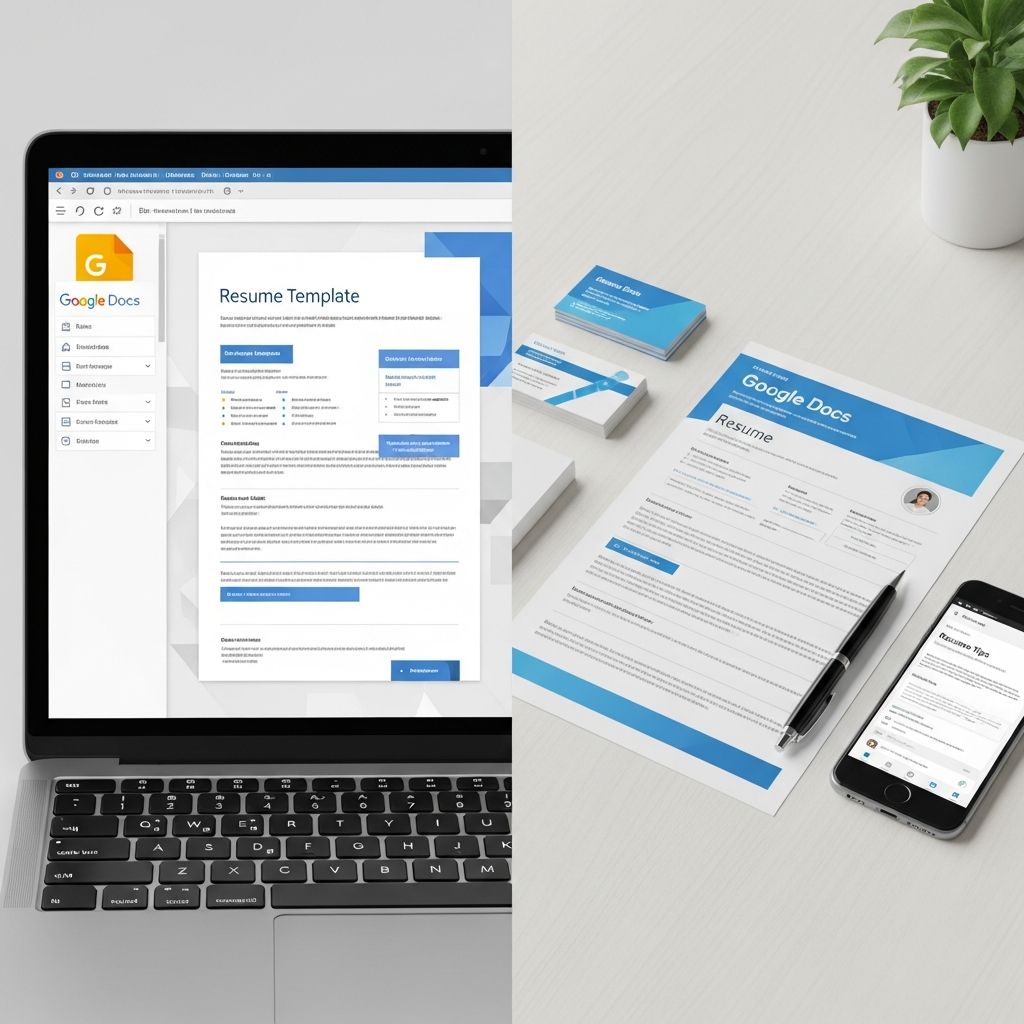
Google Docs offers free resume templates that can be a fast way to build a professional-looking resume—if you know how to choose the right layout and customize it correctly. This guide explains how to pick, edit, and optimize Google Docs resume templates so they look polished, pass applicant tracking systems (ATS), and highlight your strongest qualifications.
Why Use Google Docs for Your Resume?
Before diving into templates, it helps to understand what makes Google Docs a useful resume tool and where its limitations lie.
- Free access: Anyone with a Google account can use the templates without extra software.
- Cloud-based editing: Your resume is saved automatically and accessible from any device with a browser.
- Easy sharing: You can export to PDF or DOCX, or share a link when collaboration is needed.
- Basic formatting controls: You can adjust fonts, margins, spacing, and colors without advanced design skills.
At the same time, employers generally expect resumes to follow established conventions in structure, clarity, and readability, regardless of which tool you use.
Understanding Resume Formats Before You Pick a Template
Most Google Docs templates are built around one of three common resume formats. Choosing the right format matters more than the colors or decorative elements.
| Format | Best For | Key Characteristics |
|---|---|---|
| Reverse-chronological | Candidates with steady work history in the same field | Lists jobs from most recent to oldest; widely preferred by recruiters and ATS. |
| Functional (skills-based) | Candidates with career gaps or big changes | Groups content by skills rather than dates; can be harder for employers to evaluate. |
| Combination | Experienced professionals with notable skills and achievements | Blends a prominent skills section with a concise work history; useful when your skills are the main selling point. |
When browsing Google Docs templates, look for the underlying format first, then the design. Reverse-chronological templates are usually the safest and most recruiter-friendly option for most job seekers.
Finding and Opening Google Docs Resume Templates
To start from a template inside Google Docs:
- Open Google Drive or Google Docs.
- Click Template gallery.
- Look for templates labeled as resumes.
- Click the template thumbnail to create your own editable copy.
If you prefer, you can also upload a DOCX template from another site into Google Drive and edit it in Google Docs, but ensure that formatting remains clean and simple so it is readable by ATS software.
Key Sections Your Google Docs Resume Must Include
No matter which template you use, certain sections are expected by recruiters. Well-known career centers and hiring platforms consistently highlight these as core resume components.
- Contact details (top of the page)
- Full name
- Professional email address
- Phone number with country/area code
- City and state/region (postal address optional)
- LinkedIn profile or portfolio link, where relevant
- Professional summary or headline
- 2–3 concise sentences summarizing your experience, skills, and target role.
- Tailor it to each job description.
- Work experience
- Job title, organization, location, and dates.
- 2–6 bullet points focused on measurable achievements.
- Skills
- Technical, digital, and role-specific skills that match the posting.
- Group them logically (e.g., Technical, Languages).
- Education
- Institution, credential, location, and completion date.
- Optional subpoints: honors, key coursework, or projects if you are early in your career.
Additional optional sections include certifications, awards, publications, or volunteer experience, especially when they directly support your target role.
Making a Google Docs Template ATS-Friendly
Applicant tracking systems are used by many organizations to scan resumes and rank candidates based on keywords and formatting. To ensure your Google Docs resume is compatible:
- Stick to simple fonts such as Arial, Calibri, or Times New Roman, which are widely recommended for clarity.
- Avoid text boxes, columns, and graphics that might confuse ATS parsing.
- Use clear headings like “Experience,” “Education,” and “Skills” instead of creative labels.
- Incorporate relevant keywords directly from the job posting into your summary, skills, and bullet points, using them in natural sentences.
- Save and send as PDF unless the employer specifically requests a different format; PDFs help preserve layout across systems.
Editing and Customizing the Template Layout
Once you choose a template, the real value comes from thoughtful customization. You want your resume to be easy to scan while highlighting the details that matter most.
Adjusting Basic Formatting
- Font size: Keep body text between 10 and 12 points.
- Headings: Use slightly larger or bold text for section titles.
- Margins and spacing: Standard margins (around 1 inch) keep your resume balanced; use consistent line spacing throughout.
- Color: Use color sparingly, mainly for headings or subtle accents, to maintain a professional look.
Reordering Sections Strategically
Google Docs lets you move sections around easily. Use this to your advantage:
- Put your most relevant information near the top of the first page because recruiters often skim quickly.
- As a student or recent graduate, you can move Education above Experience if your work history is limited.
- For experienced professionals, keep Work Experience prominent and prioritize recent roles.
Using Bullet Points Effectively
Bullet points should help hiring managers see your impact at a glance. Career resources consistently recommend concise, results-focused bullets.
- Start each bullet with a strong action verb (e.g., led, improved, implemented, developed).
- Highlight measurable results (percentages, dollar amounts, quantities) when possible.
- Focus on what is most relevant to the job, not every task you ever performed.
- Keep most bullets to one line to maintain scannability.
Tailoring a Google Docs Template to a Specific Job
A generic resume is easy to overlook. Research shows that aligning your resume content with the skills and keywords mentioned in the job description can significantly improve your chances.
- Analyze the posting: Highlight repeated skills, tools, and responsibilities in the job description.
- Weave keywords naturally into your summary, experience, and skills section instead of copying them in a list.
- Mirror the employer’s language where it accurately describes your experience (for example, using the same job title if your role was equivalent).
- Prioritize relevant history: Emphasize roles and accomplishments that closely match what the employer is seeking, and shorten or remove unrelated details.
Common Mistakes with Google Docs Resume Templates
Templates can save time, but they also make it easy to overlook important details. Avoid these frequent errors:
- Leaving placeholder text like “Lorem ipsum” or sample job titles.
- Overloading with design elements that distract from content or break ATS parsing.
- Inconsistent formatting in headings, bullet styles, or date formats, which can make the resume look unpolished.
- Including outdated or irrelevant roles that add length but not value; older roles can often be summarized or removed.
- Using first person pronouns (“I” or “my”) instead of the standard implied first person used on resumes.
Length, Versions, and File Management
Managing your resume inside Google Docs becomes easier if you follow some simple practices.
- Keep most resumes to one page if you have under 10 years of experience; two pages can be appropriate for more senior roles.
- Create separate copies in Google Drive for each major role type you target (e.g., marketing, project management) so you can tailor quickly.
- Use clear file names such as Firstname-Lastname-JobTitle-Resume.pdf before submitting.
- Double-check formatting after export by opening your PDF or DOCX download to ensure spacing and alignment look correct on other devices.
Quick Checklist Before You Download Your Resume
Before you send or upload your Google Docs resume, run through this brief checklist:
- All placeholder text is removed.
- Contact information is accurate and professional.
- Sections are clearly labeled (Summary, Experience, Skills, Education).
- Bullets focus on outcomes and, where possible, include numbers.
- Keywords from the job description appear naturally in your content.
- Formatting is consistent and easy to scan.
- The file is exported to the format requested in the job posting, usually PDF.
Frequently Asked Questions (FAQs)
Q: Are Google Docs resume templates really free to use?
Yes. The templates available in the Google Docs template gallery are free for anyone with a Google account. You can create copies, edit them, and export your resume without additional cost.
Q: Do employers care if I used a Google Docs template?
Most employers do not mind which tool you used. They care far more about whether your resume is clear, relevant, and tailored to the role, and whether it passes any ATS screening used in their process.
Q: How can I make a Google Docs template look less generic?
Customize the summary, emphasize your most relevant achievements, adjust the section order to fit your background, and use subtle formatting tweaks like bolded keywords and carefully chosen headings. Avoid changing the structure so much that it becomes hard to read or incompatible with ATS software.
Q: Should I use a photo on my Google Docs resume?
In many countries and industries, including a photo on a resume is discouraged because it can introduce bias and is unnecessary for evaluating qualifications. Unless you are in a field where images are expected (such as acting or modeling) or in a region where photos are standard, it is usually better to leave it off.
Q: Is it okay to share my resume as a Google Docs link?
For formal applications, employers typically expect an attached file uploaded through their system. Sharing a Google Docs link can be useful for informal networking or feedback, but you should still download and submit a PDF or DOCX file when applying through official channels.
References
- The Best Resume Format for 2025 — ResumeGenius. 2025-01-05. https://resumegenius.com/blog/resume-help/resume-format
- 10 Resume Writing Tips To Help You Land a Position — Indeed Career Guide. 2022-08-15. https://www.indeed.com/career-advice/resumes-cover-letters/10-resume-writing-tips
- Current Resume Trends for 2025 — ResumeBuilder. 2025-03-10. https://www.resumebuilder.com/career-center/resume-trends/
- Create a Strong Resume — Harvard University Mignone Center for Career Success. 2023-09-01. https://careerservices.fas.harvard.edu/resources/create-a-strong-resume/
- 16 Top Resume Tips to Help You Land a Job in 2026 — Coursera Career Academy. 2024-11-12. https://www.coursera.org/articles/resume-tips
- How do I write a resume for a federal job? — USAJOBS Help Center, U.S. Office of Personnel Management. 2023-05-20. https://help.usajobs.gov/faq/application/documents/resume/what-to-include

Medha Deb is an editor with a master's degree in Applied Linguistics from the University of Hyderabad. She believes that her qualification has helped her develop a deep understanding of language and its application in various contexts. Medha specializes in the areas of beauty, health, sports, and wellness and is committed to ensuring that the content on the website is…