
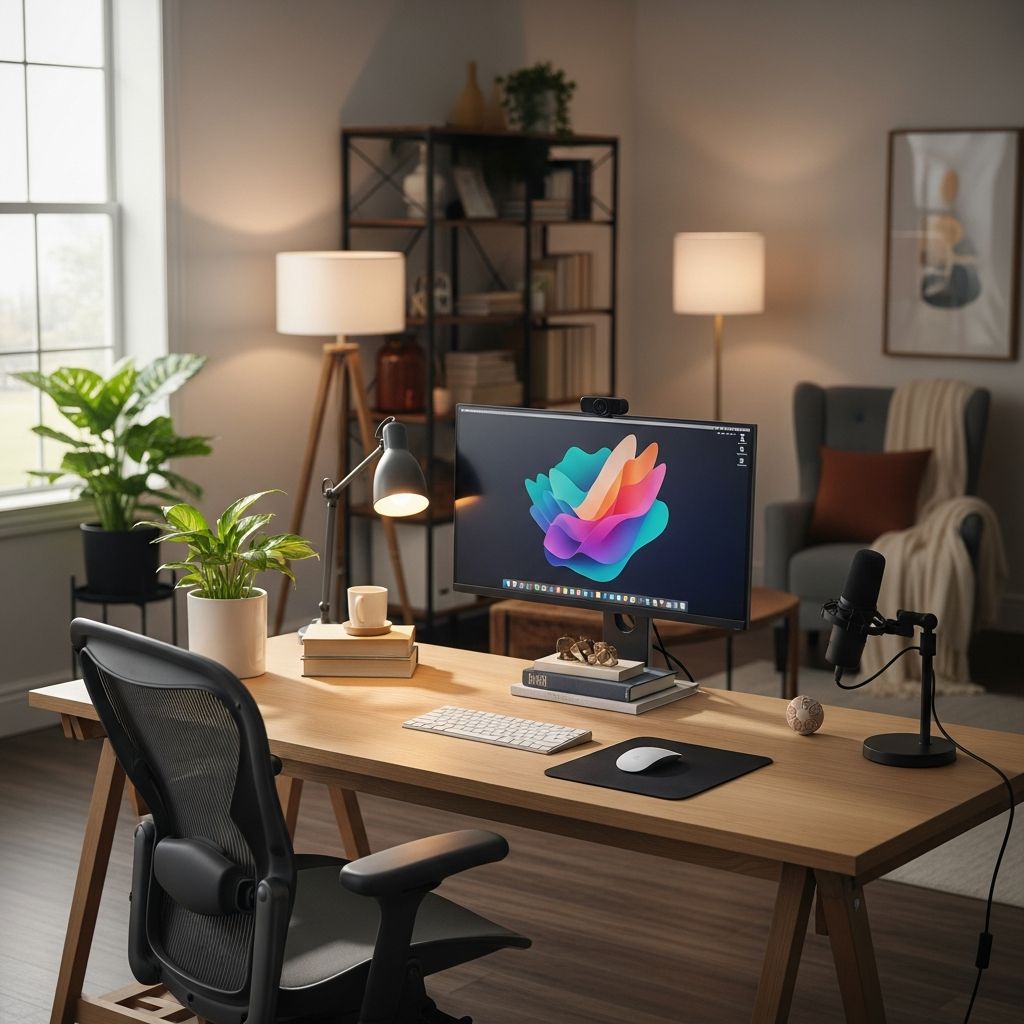
Creating Your Remote Work Foundation
The shift to remote work has fundamentally changed how professionals approach their workspace. Unlike traditional office environments where infrastructure is predetermined, remote workers must actively design their workspace to meet their unique needs and preferences. This requires understanding both the technical requirements and the physical environment necessary for sustained productivity and wellbeing.
Your home workspace serves multiple functions: it’s your communication hub, your focus zone, and increasingly, your professional identity during video calls. The decisions you make about layout, equipment, and environment directly impact your work quality, health, and job satisfaction. Rather than treating your workspace as a temporary solution, viewing it as an evolving project allows you to continuously refine and improve how you work.
Assessing Your Specific Work Requirements
Before investing in equipment or redesigning your space, take time to understand what your role actually demands. Remote work encompasses vastly different activities, from collaborative team projects to focused independent work. Your workspace requirements depend heavily on these distinctions.
Consider whether your typical day involves frequent video meetings, solo focused work, or a balanced combination of both. Collaborative roles demand reliable communication technology and a professional appearance backdrop, while independent work prioritizes comfort and minimal distractions. Many professionals navigate both scenarios, requiring flexible solutions that adapt throughout the day.
The nature of your deliverables also matters. If you’re writing, designing, or analyzing data, you may benefit from multiple screens and organized file systems. If you’re primarily communicating with clients or colleagues, video and audio quality become paramount. Understanding these nuances prevents you from over-investing in unnecessary equipment while ensuring you have what truly matters for your work.
Building Your Technical Infrastructure
Connectivity as Your Foundation
A strong internet connection is non-negotiable for remote work success. Unlike office environments with dedicated IT support, you’re personally responsible for ensuring reliable connectivity. Invest in a high-speed home internet plan that meets or exceeds your company’s requirements and supports simultaneous usage by all household members.
Consider implementing backup connectivity options, such as a mobile hotspot or upgraded smartphone tethering capability, to maintain productivity during internet outages. If multiple people work from your home, a high-quality router becomes essential—one person uploading large files shouldn’t compromise another person’s video call quality.
Computing Power and Processing
Your primary computer should align with your company’s specifications and your work demands. Rather than generic consumer devices, prioritize machines with adequate processing power, RAM, and storage for your specific applications. Whether using a laptop or desktop setup, ensure the device can handle your typical workload without frequent crashes or slowdowns.
Laptops offer flexibility and portability, allowing you to work from different locations within your home or travel with your office. Desktop computers provide better ergonomics through separate keyboard and monitor arrangements and typically offer superior processing power for demanding applications.
Display Strategy
Relying solely on a laptop screen often leads to cramped workspace and poor ergonomics. Adding at least one external monitor significantly improves productivity and comfort. External monitors allow flexible positioning, enabling your neck to remain in a naturally aligned and ergonomically correct position.
For professionals requiring frequent video calls, using one monitor for video conferencing while maintaining a second for reference materials, documentation, or collaborative editing dramatically improves workflow efficiency. When selecting monitors, prioritize screen size and resolution for your specific work—graphic designers and data analysts benefit from larger displays, while writers and general professionals find standard 24-27 inch monitors sufficient.
Audio and Visual Communication Equipment
Optimizing Your Video Presence
Video call quality directly influences how colleagues perceive your professionalism and engagement. While built-in laptop cameras serve basic purposes, dedicated webcams with proper mounting solutions deliver noticeably superior results. When upgrading your camera setup, investing in a heavy-duty mounting solution becomes essential for stability and positioning flexibility.
Lighting dramatically impacts video quality more than most people realize. Positioning light sources in front of you, rather than behind or to the sides, creates even illumination with minimal shadows. Ring lights or specialized key lights designed for video calls eliminate unflattering shadows and create a normalized, professional appearance regardless of your room’s natural lighting.
Your camera settings require careful attention. Enable movie mode rather than photo mode, activate clean HDMI output to eliminate menu icons from your video feed, disable auto power-off, and leverage continuous face tracking if available. Adjust exposure and white balance settings to compensate for your room’s specific lighting conditions, creating a normalized image your colleagues will appreciate.
Audio Quality Considerations
Clear audio matters as much as video quality during remote meetings. Built-in microphones often pick up keyboard noise, background sounds, and room echo. A dedicated microphone with proper positioning creates noticeably clearer communication and demonstrates professionalism during important calls.
Choose between standalone microphones, headset-integrated options, or USB microphones based on your mobility needs. Boom arm mounts position microphones optimally while keeping your desk uncluttered. Noise-canceling features help minimize background distractions, particularly if you work in shared spaces or areas with ambient noise.
Speakers or quality headphones complete your audio setup. Headphones provide privacy and prevent background noise during calls, while speakers work well for presentations or listening to collaborators’ input. Many professionals maintain both options, choosing based on the activity.
Ergonomic Design for Long-Term Health
Seating and Posture Support
Remote workers frequently underestimate ergonomics’ importance until experiencing neck pain, lower back discomfort, or wrist strain. A quality ergonomic chair represents perhaps your most important workspace investment, supporting extended work sessions without physical consequences.
Your seating position should maintain natural spine alignment with your feet flat on the ground or footrest, knees at approximately 90 degrees, and your back comfortably supported. The chair height matters significantly—when seated, your arms should rest at roughly 90-degree angles with keyboard and mouse positioned accordingly.
Desk Setup and Monitor Positioning
Monitor placement prevents neck and shoulder strain, arguably the most common remote work complaint. Position your monitor directly in front of you rather than off to one side, with the top of the screen at or slightly below eye level. This positioning prevents the downward head tilt that creates neck tension during long work sessions.
Your desk height should allow your keyboard and mouse to sit at a comfortable level where your forearms rest parallel to the ground. Wrist strain develops quickly when keyboards sit too high or too low, potentially leading to repetitive strain injuries. Taking time to adjust these elements prevents long-term pain and maintains productivity.
Plan your desk dimensions around your equipment rather than forcing equipment into an undersized desk. Measure your monitors’ physical dimensions, account for external speakers, consider printer placement, and allow space for writing materials and desk accessories. A desk that’s too small for your needs creates clutter and reduces efficiency.
Environmental Considerations for Focus and Wellness
Noise Management Strategies
Distractions from household noise, traffic, or other environmental sounds impair concentration and make video calls challenging. Locating your workspace away from high-traffic areas like kitchens or living rooms helps minimize interruptions. If a separate dedicated room isn’t available, creating physical separation through dividers or furniture arrangement establishes a defined workspace zone.
Noise-canceling headphones provide substantial benefits, particularly during focused work periods or when background noise is unavoidable. They both block incoming distractions and signal to household members that you’re in work mode, reducing interruptions.
Lighting and Natural Elements
Positioning your workspace near a window provides multiple benefits beyond ergonomics. Natural light reduces eye strain compared to artificial-only lighting, supports circadian rhythm regulation, and provides visual relief from screen work. Facing your desk toward a window or sitting beside one allows frequent visual breaks that reduce eye fatigue.
If windows aren’t available, invest in quality artificial lighting that approximates daylight temperature. Task lighting at your desk combined with ambient room lighting creates comfortable viewing conditions without glare on screens. Proper lighting also improves your appearance during video calls, showing colleagues an well-lit, professional setting.
Essential Equipment Checklist
While individual needs vary, certain equipment categories support most remote work scenarios:
- Computing: Primary computer with adequate specifications for your role
- Display: At least one external monitor for ergonomic positioning
- Peripherals: Ergonomic keyboard and mouse to prevent wrist strain
- Video: Dedicated webcam with quality mounting solution
- Audio: Microphone and headphones or speakers for calls and focus work
- Storage: External hard drives or cloud storage for file backup and collaboration
- Networking: High-speed router and potentially backup connectivity options
- Furniture: Ergonomic chair and properly-sized desk
- Lighting: Task lighting or ring light for video calls and focused work
- Accessories: Printer/scanner if your role requires physical document handling
Software and Collaboration Tools
Beyond hardware, successful remote work requires appropriate software infrastructure. Communication platforms like Slack or Microsoft Teams enable real-time messaging and quick coordination. Video conferencing tools such as Zoom or Google Meet facilitate virtual meetings and face-to-face collaboration despite physical distance.
Project management solutions including Asana, Trello, or Monday.com help teams track progress, assign tasks, and maintain transparency. Document collaboration through Google Workspace or Microsoft 365 allows seamless teamwork on shared files. Cloud storage options like Dropbox, Google Drive, or OneDrive ensure file accessibility and backup security.
Selecting the right tools depends on your team’s specific needs, but most roles benefit from at least one tool in each category—communication, video conferencing, project tracking, document collaboration, and cloud storage.
Establishing Productive Routines and Boundaries
Creating Work-Life Separation
When your home becomes your office, intentional boundaries prevent work from expanding into all hours. Schedule specific work times and commit to time off, turning off communication applications and closing work-related tabs when your day ends. Enable calendar features that signal your working hours to colleagues across different time zones, preventing inappropriate meeting requests during off-hours.
Physical separation helps reinforce these boundaries. If possible, use a dedicated room that you can physically leave at day’s end. If sharing space, even a visual divider or designated corner creates psychological separation between work and home environments.
Ongoing Workspace Evolution
Your workspace shouldn’t remain static. As you work in your setup, you’ll discover adjustments that improve productivity—shifting monitor positions, adding specific lighting, or testing whether music or silence aids concentration. Treating your workspace as an evolving project encourages continuous optimization rather than accepting an imperfect initial setup.
Recognize that individual preferences vary significantly. Some people thrive with ambient noise while others require complete silence. Some prefer standing desks or alternative seating arrangements. Rather than one universal solution, the best workspace accommodates your specific preferences and needs.
Frequently Asked Questions
Q: What’s the minimum budget for setting up a functional remote workspace?
A: A basic functional setup requires a reliable internet connection, computer with appropriate specs for your role, and an ergonomic chair—typically ranging from $500-$1,500. Budget-friendly options exist for most equipment categories, though investing in ergonomics prevents costly health issues later.
Q: Can I work effectively from a kitchen table or living room couch?
A: While temporary work from alternative spaces is possible, sustained productivity and health require proper ergonomic support. Kitchen tables and couches create poor posture that leads to pain and reduced efficiency over time. If dedicated workspace isn’t available, even a corner with proper furniture and setup provides significant improvements.
Q: How important is natural light for a remote workspace?
A: Natural light provides substantial benefits including reduced eye strain, improved mood, and circadian rhythm support. While not absolutely essential, positioning your workspace near a window and supplementing with quality artificial lighting creates an optimal working environment that supports both productivity and wellbeing.
Q: Should I invest in a standing desk?
A: Standing desks offer variety in posture throughout the day, which some people find beneficial. However, they’re not universally necessary. A quality ergonomic sitting setup with regular movement breaks often provides comparable benefits at lower cost. Test different arrangements to determine what works for your body and work style.
Q: What should I do if I don’t have a dedicated room for a home office?
A: Create a designated workspace zone using furniture arrangement, dividers, or visual markers. Position your desk near a window if possible, use noise-canceling headphones for focus, and establish clear on/off-work rituals. Even a well-organized corner with proper ergonomic setup provides effective remote work space in shared environments.
References
- How to create the perfect home office setup for remote working — GitLab Handbook. Accessed January 2026. https://handbook.gitlab.com/handbook/company/culture/all-remote/workspace/
- Mastering Remote Work: A Comprehensive Guide to Setting Up Your Home Office — Emerging Travel Group. Accessed January 2026. https://blog.emergingtravel.com/mastering-remote-work-a-comprehensive-guide-to-setting-up-your-home-office/
- Build a functional remote work setup that prevents pain, boosts productivity, and supports long-term work-from-home success — Pete’s Panels. Accessed January 2026. https://petespanels.com/remote-work-setup/
- Going Remote: How to Create Your Own Flexible Workspace — We Work Remotely. Accessed January 2026. https://weworkremotely.com/going-remote-how-to-create-your-own-flexible-workspace
- Show us your remote work setup! — Atlassian Community. Accessed January 2026. https://community.atlassian.com/forums/Watercooler-discussions/Show-us-your-remote-work-setup/td-p/1327403
- My Mobile Office Setup: A Guide to Pain-Free Remote Work — Evan Bart. Accessed January 2026. https://www.evbart.com/my-mobile-office-setup-a-guide-to-pain-free-remote-work/
- 20 Remote Workspace Setup Ideas for Business Owners — Wishup. Accessed January 2026. https://www.wishup.co/blog/20-remote-workspace-setup-ideas-to-make-you-creative-from-anywhere/

Medha Deb is an editor with a master's degree in Applied Linguistics from the University of Hyderabad. She believes that her qualification has helped her develop a deep understanding of language and its application in various contexts. Medha specializes in the areas of beauty, health, sports, and wellness and is committed to ensuring that the content on the website is…