
Understanding Document Formatting Transfer Essentials
In today’s fast-paced professional environment, working with multiple documents and applications has become standard practice. One of the most time-consuming tasks involves maintaining consistent formatting across various sections of a document or transferring styles between different files. Whether you’re working on reports, presentations, or collaborative projects, understanding how to efficiently replicate formatting can dramatically improve your productivity and document consistency.
The ability to copy and apply formatting without recreating styles from scratch is a fundamental skill that separates efficient users from those who spend unnecessary time formatting. Modern applications like Microsoft Word, Excel, Google Docs, and PowerPoint offer multiple methods to accomplish this task, each with distinct advantages depending on your specific needs and workflow preferences.
The Format Painter: Your Primary Formatting Tool
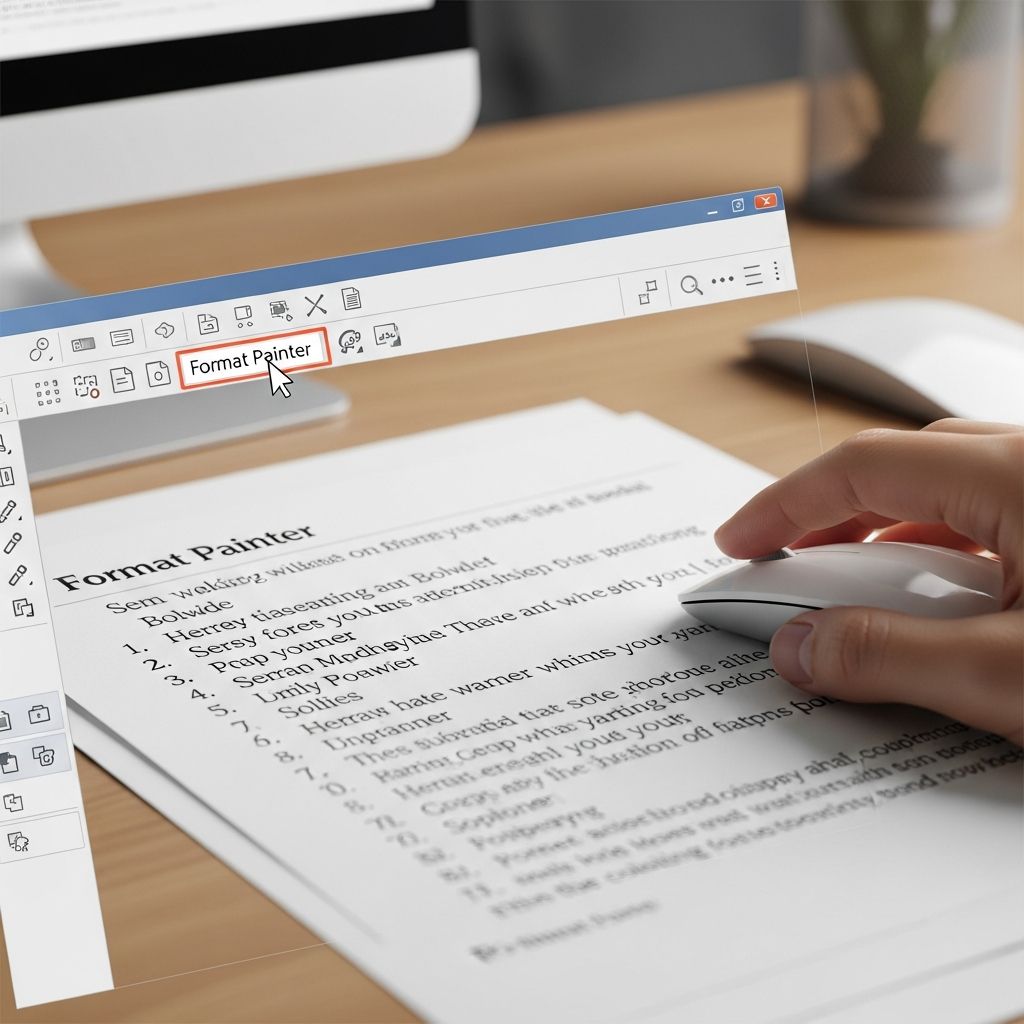
The Format Painter represents the most visual and intuitive method for transferring formatting between text blocks or objects. This tool works like a digital brush, allowing you to “paint” formatting from one location to another. Understanding both single-use and continuous application modes will enable you to work more efficiently depending on your task requirements.
Single-Use Format Painter Technique
For tasks where you need to apply formatting to just one or two locations, the single-use Format Painter method provides a straightforward approach. This method is ideal when you want to match the appearance of a specific text block without affecting multiple areas of your document.
Begin by identifying the text or object whose formatting you wish to replicate. Select this source material carefully, ensuring you’ve captured all the styling elements you want to transfer. Once selected, locate the Format Painter button in your toolbar—typically found in the Home or Format menu depending on your application. Click this button once, and your cursor will transform into a paintbrush icon, indicating that the tool is active and ready to apply formatting.
With the paintbrush cursor active, navigate to the destination text or object where you want to apply this formatting. Click or drag across the target area, and the formatting will transfer automatically. The paintbrush cursor will disappear once the action completes, and your formatting transfer is finished. This automatic deactivation prevents accidental formatting changes to unintended areas.
Continuous Format Painter Application
When working with documents containing multiple sections that require the same formatting, the continuous Format Painter mode saves significant time. Rather than repeatedly activating the tool for each location, you can enable it once for multiple applications.
Select your source text with the desired formatting, then double-click the Format Painter button instead of single-clicking. This action locks the tool into continuous mode, keeping your cursor in paintbrush form. You can now apply the formatting to numerous different text blocks by clicking and dragging across each target area. To exit continuous mode, press the Escape key or click the Format Painter button again.
Keyboard Shortcuts for Rapid Formatting Control
Keyboard shortcuts provide the fastest method for users who prefer not to navigate menus or reach for the mouse. Different applications use slightly different shortcut combinations, but the logic remains consistent across platforms.
Microsoft Word Formatting Shortcuts
Microsoft Word employs keyboard combinations that mirror its standard copy and paste functions, making them easy to remember. To copy formatting in Word, select your source text and press Ctrl+Alt+C on Windows computers or Command+Option+C on Mac devices. This action copies the formatting properties without copying the actual text content.
Next, select the destination text where you want to apply this formatting and press Ctrl+Alt+V on Windows or Command+Option+V on Mac. The formatting instantly transfers to your selected area. These shortcuts work across all Word versions including Microsoft 365, Word 2024, Word 2021, Word 2019, and Word 2016.
Google Docs Formatting Shortcuts
Google Docs users have access to similar functionality through their own keyboard shortcuts. To copy formatting in Google Docs, select your source text and press Ctrl+Alt+C on Windows or Chrome OS, or ⌘+Option+C on Mac devices. Then select your destination text and press Ctrl+Alt+V (Windows/Chrome OS) or ⌘+Option+V (Mac) to paste the formatting.
Alternative Shortcuts for Various Applications
Some applications offer alternative shortcuts that may feel more intuitive to certain users. The combination Ctrl+Shift+C to copy formatting and Ctrl+Shift+V to paste formatting mimics the standard copy-paste pattern with an added Shift key, making these shortcuts easy to remember for users who prefer minimal deviation from conventional copying methods.
Managing Unwanted Formatting in Paste Operations
One of the most frustrating aspects of copying content from web pages or other documents involves unwanted formatting arriving with the text. When you copy text from a website featuring italics, colors, underlines, or hyperlinks, pasting it into your document often brings all these formatting elements along, creating visual inconsistencies and requiring manual cleanup.
Paste Without Formatting Method
The “Paste Without Formatting” feature strips away all styling, allowing your pasted content to adopt the formatting of its new location automatically. In most applications, you can access this feature through the Paste Special menu by right-clicking after copying content and selecting appropriate paste options. Alternatively, use the keyboard shortcut Ctrl+Shift+V in Windows applications to paste plain text only.
This approach proves particularly valuable when working with emails, web content, or materials from multiple sources. Rather than spending time removing unwanted formatting attributes, the plain text paste handles this automatically, giving you clean, consistent text that immediately matches its surrounding formatting context.
Advanced Formatting Control with Paste Special
For users requiring granular control over what formatting elements transfer, the Paste Special function provides comprehensive options unavailable through standard paste operations.
Accessing Paste Special Features
In Microsoft Excel and Word, right-click on your destination location and select “Paste Special” from the context menu, or use the keyboard shortcut Ctrl+Alt+V. This opens a dialog box presenting multiple paste options including:
- Formats only (transfers styling without cell values or formulas)
- Values only (transfers content without any formatting)
- Source formatting (applies original document’s styling)
- Merge formatting (applies destination document’s styling)
- Unformatted text (removes all formatting attributes)
Selecting the Right Paste Option
Choose “Formats” when you want to replicate only the styling properties to new content. This option proves invaluable in spreadsheets where you’ve carefully designed cell formatting but need to apply it to newly added data without affecting existing values or formulas.
The “Source Formatting” option maintains the original document’s appearance exactly, including fonts, colors, sizes, and effects. This works well when you’re combining content from multiple sources and want specific sections to retain their original styling for emphasis or clarity.
“Merge Formatting” intelligently blends the destination document’s base formatting with special formatting from the source, creating a balanced result that respects both documents’ styling conventions. This option is particularly useful in collaborative environments where documents follow specific style guidelines.
Formatting Properties Transferred by Format Tools
Understanding what elements transfer when using formatting tools helps you predict results and choose appropriate methods for your specific needs.
Font-Level Formatting Attributes
Format painting and formatting shortcuts transfer font-specific properties including typeface selection, point size, color, emphasis options like bold or italic, superscript and subscript effects, text effects such as shadows or glows, and highlighting colors. These character-level properties apply to individual text selections regardless of their location within your document.
Paragraph-Level Formatting Elements
Beyond individual character formatting, format tools also replicate paragraph-level properties such as bullet points and numbering schemes, text alignment settings, line and paragraph spacing, indentation levels, borders, shading or background colors, and style definitions from the Styles gallery including heading levels. To ensure paragraph-level formatting transfers completely, include the closing paragraph mark in your selection.
Platform-Specific Formatting Considerations
Different applications handle formatting transfer slightly differently, requiring awareness of platform-specific behaviors and limitations.
Microsoft Office Suite Behavior
Word, Excel, and PowerPoint within the Microsoft Office family share similar formatting transfer mechanisms, though Excel emphasizes cell-level formatting while Word focuses on character and paragraph properties. PowerPoint’s Format Painter works with text boxes, shapes, and lines, making it valuable for maintaining consistent presentation styling across slides.
Google Workspace Implementation
Google Docs, Sheets, and Slides provide cloud-based alternatives with their own formatting shortcuts and limitations. Google’s implementation emphasizes collaborative formatting, allowing multiple users to maintain consistent styling across shared documents. The same shortcut patterns apply across the Google Workspace suite, promoting consistency for users working across multiple applications.
Best Practices for Efficient Formatting Workflow
Developing consistent habits around formatting transfer significantly improves document creation speed and consistency.
- Establish formatting for sample text before copying widely to verify appearance
- Use keyboard shortcuts for frequent tasks to minimize reliance on toolbar navigation
- Leverage continuous Format Painter mode for documents with multiple formatted sections
- Apply Paste Without Formatting to external content before styling to ensure clean results
- Use Paste Special for precise control when combining content from multiple sources
- Create and apply styles rather than manual formatting for large documents requiring consistent appearance
Common Formatting Transfer Challenges and Solutions
Formatting Not Transferring Completely
If your formatting appears incomplete after transfer, verify that you selected the entire source content including paragraph marks if paragraph-level formatting is needed. Some applications require specific selection techniques to capture all formatting properties.
Unwanted Formatting Persisting After Paste
Use Paste Special with the “Formats Only” option or Paste Without Formatting to override unwanted styling. Then manually apply only the formatting elements you actually need.
Keyboard Shortcuts Not Working
Verify that you’re using the correct shortcut combination for your specific application and operating system. Mac users should use Command instead of Ctrl, and Option instead of Alt. Different applications sometimes use different combinations.
Frequently Asked Questions About Formatting Transfer
Q: Can I copy formatting from images or objects, not just text?
A: Yes, the Format Painter works with shapes, lines, text boxes, and other objects. Select the object with desired formatting, click Format Painter, then click another object to apply that styling.
Q: Does formatting transfer between different applications?
A: Limited transfer is possible through basic formatting attributes like bold, italic, and color. Complex formatting may not translate perfectly between different applications due to feature differences.
Q: What’s the difference between Ctrl+V and Ctrl+Shift+V?
A: Ctrl+V pastes content with its original formatting intact, while Ctrl+Shift+V pastes only plain text, allowing it to adopt the destination document’s existing formatting.
Q: Can I undo formatting changes if I apply them incorrectly?
A: Yes, press Ctrl+Z (Windows) or Command+Z (Mac) to undo any formatting changes. You can continue undoing previous actions as needed.
Q: Is there a way to copy formatting from multiple sources simultaneously?
A: Most applications don’t support copying multiple formatting sources at once. Format one area at a time, or use the continuous Format Painter mode to apply a single formatting style to multiple locations.
References
- How to use the Format Painter (Word, PowerPoint, and Excel) — Nuts and Bolts Speed Training. 2025. https://nutsandboltsspeedtraining.com/powerpoint-tutorials/format-painter/
- How to Copy and Paste Formatting in Microsoft Word (PC & Mac) — Erin Wright Writing. January 20, 2025. https://www.youtube.com/watch?v=1aSc9cwjjEo
- Copy and paste text and images – Google Docs Editors Help — Google Support. 2025. https://support.google.com/docs/answer/161768?hl=en
- Discover New Methods to Easily Copy Format in Excel — Macabacus. 2025. https://macabacus.com/blog/excel-formatting-paintbrush
- Copy-Paste Secrets to Boost Your Productivity — Paper Street. 2025. https://www.paperstreet.com/blog/copy-paste-secrets/

- Integrated M.A. in Applied Linguistics, University of Hyderabad
- 5+ years in editorial, instructional, SEO, and research-based writing
Sneha is a relationships and lifestyle writer with a strong foundation in applied linguistics and certified training in relationship coaching. She brings over five years of writing experience to theskillvault, crafting thoughtful, research-driven content that empowers readers to build healthier relationships, boost emotional well-being, and embrace holistic living. Her writing and insights reflect the belief that beauty, happiness, and wellness…