
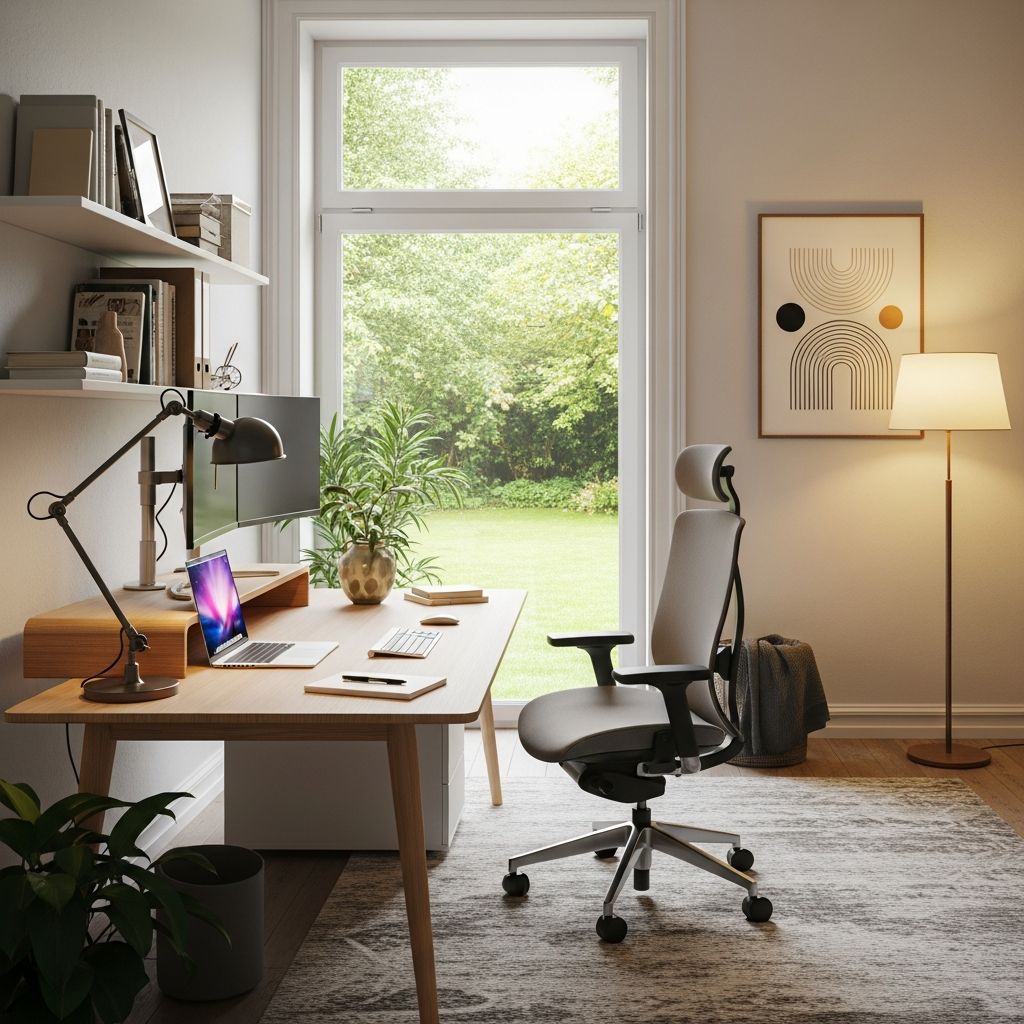
Establishing the Foundation of Your Home Workspace
The shift toward remote work has made the home office more than just a convenience—it’s become essential for professional success and personal wellness. Unlike traditional office environments where ergonomic standards are often enforced, working from home places the responsibility entirely on you to create a workspace that supports both productivity and physical health. The decisions you make about your desk, chair, monitor placement, and overall layout will directly influence your work quality, focus level, and long-term health outcomes.
A well-designed home workspace serves multiple purposes simultaneously. It creates a psychological boundary between work and personal life, helping you transition into a professional mindset during work hours and disconnect when the day ends. It also ensures you maintain proper posture and positioning to prevent the chronic pain and repetitive strain injuries that plague many remote workers. Beyond these practical benefits, a thoughtfully arranged workspace can boost motivation, reduce fatigue, and create an environment where you perform at your best.
Selecting the Right Location and Environment
Before you buy a single piece of furniture, carefully evaluate where in your home you’ll establish your workspace. The ideal location should be separate from your leisure areas, allowing you to maintain that crucial boundary between work and relaxation. A dedicated room is optimal, but if space is limited, even a corner of a bedroom or living room can work if it’s physically distinct from where you sleep or unwind. This separation isn’t merely psychological—it actually helps regulate your circadian rhythm and prevents work stress from infiltrating your rest spaces.
Consider natural light as a primary factor in location selection. Positioning your desk near a window provides natural illumination that reduces eye strain, boosts mood, and aligns with your body’s natural circadian rhythm. However, ensure that direct sunlight doesn’t create glare on your monitor, as this forces your eyes to work harder and causes discomfort. If natural light is unavailable, you’ll need to invest in quality artificial lighting, which we’ll discuss in detail later.
Temperature control and air quality also influence location choice. Choose a space where you can maintain comfortable conditions without excessive noise from household activities. A room with a door that closes is ideal, as it minimizes distractions and interruptions while allowing you to maintain focus for extended periods.
Understanding Ergonomic Principles for Your Workspace
Ergonomics represents the science of fitting your environment to your body, rather than forcing your body to adapt to your environment. This principle is fundamental to designing a workspace that protects your health while you work. Poor ergonomic practices lead to numerous conditions including lower back pain, neck strain, carpal tunnel syndrome, and eye fatigue—all conditions that worsen over time and can become chronic.
The concept of neutral posture is central to ergonomic workspace design. This means positioning your body so that all joints—neck, shoulders, elbows, wrists, hips, and knees—operate within their comfortable range of motion without excessive strain. When you maintain neutral posture, your muscles work efficiently, fatigue decreases, and your body can sustain work for longer periods without discomfort.
One common misconception is that proper ergonomics means remaining completely still. Actually, the ideal approach combines a fundamentally correct setup with frequent position changes. Your body isn’t designed for static positioning; introducing movement throughout your workday, even minor adjustments, significantly reduces strain and improves circulation.
Optimizing Chair and Sitting Position
Your chair represents the foundation of your ergonomic setup because it directly supports your spine and influences your posture throughout the day. An inadequate chair creates a cascade of postural problems that affect your entire body. When selecting a chair, prioritize adjustability over aesthetics or cost savings.
An effective office chair should provide several key adjustments. Seat height should allow your feet to rest flat on the floor or a footrest with your thighs approximately parallel to the ground and knees positioned at roughly 90 to 110 degrees. This positioning relieves pressure on your thighs and promotes proper blood circulation in your lower body.
The backrest should support your natural spine curve, with particular attention to lower back support. Many people experience lower back pain from office chairs that fail to provide lumbar support. When seated, your upper back and shoulder blades should maintain contact with the chair back, and you should avoid allowing your shoulders to round forward. This forward rounding position—sometimes called ‘tech neck’—creates excessive strain on your cervical spine and upper back muscles.
Armrests deserve consideration as well. Properly positioned armrests support your upper arms and reduce strain on your shoulders and neck. Your elbows should rest at approximately 90 to 110 degrees, with your arms positioned naturally alongside your torso rather than extended or compressed.
Positioning Your Monitor and Display Setup
Monitor placement significantly affects both your posture and eye health, yet many remote workers position screens too high, too low, or too close. The ideal monitor position follows specific guidelines that align with your visual anatomy.
Your monitor’s top edge should align with or fall slightly below your seated eye level. This positioning prevents you from tilting your head backward, which strains your neck. The monitor should be positioned approximately an arm’s length away from your seated position—roughly 20 to 26 inches—which allows your eyes to focus comfortably without straining. Positioning monitors closer forces your eyes to work harder and can contribute to digital eye strain.
Angle your monitor approximately 15 degrees away from you rather than positioning it perpendicular to your desk. This slight backward tilt reduces glare and positions the screen more naturally within your line of sight. If you wear bifocals or progressive lenses, you may need to angle your monitor more steeply to accommodate your viewing distance through the lower lens portion.
Text size matters more than many people realize. If you find yourself leaning forward to read text on your screen, your setup needs adjustment. Increase your zoom level or font size—settings above 150% zoom are increasingly common and perfectly appropriate. Many people sacrifice readability to fit more content on screen, which ultimately reduces productivity and harms your health.
If your work requires multiple monitors, arrange them as closely together as possible to minimize neck rotation. For dual monitors used equally, position them so the center split aligns with your body’s midline, essentially lining up with your nose. If you use one monitor more frequently than others, position it directly in front of your body with secondary monitors to either side.
Keyboard and Mouse Placement Strategy
Your hands and wrists spend countless hours on your keyboard and mouse, making their positioning critical to preventing repetitive strain injuries. Both devices should be positioned at or slightly below your resting elbow height. This positioning allows your shoulders and upper arms to hang naturally beside your torso while your elbows remain at approximately 90 to 110 degrees with forearms roughly parallel to the ground.
Wrist position during typing and mousing deserves special attention. Your wrists should remain straight—never bent upward, downward, or to either side. Many people develop carpal tunnel syndrome and other wrist conditions from prolonged awkward wrist positioning. If you use wrist or palm rests, choose soft materials like foam or gel and use them only during break periods when you’re not actively typing or mousing. Continuous contact with rests during active work can actually create pressure points that contribute to nerve compression.
Consider investing in an ergonomic keyboard designed to maintain neutral wrist positioning. Similarly, ergonomic mouse designs often reduce strain compared to standard mice. However, equipment alone cannot compensate for poor positioning—even an ergonomic keyboard won’t help if your desk height forces your wrists into awkward angles.
Lighting Design for Reduced Eye Strain
Proper lighting transforms your workspace from a place of eye fatigue to an environment where you can work comfortably for extended periods. Inadequate or inappropriate lighting contributes to digital eye strain, headaches, and reduced productivity.
Natural light offers significant advantages when available and positioned correctly. Ideally, position your desk so natural light comes from the side rather than directly behind your monitor or facing you. Side lighting provides general illumination without creating monitor glare or causing you to squint.
When natural light is insufficient, artificial lighting becomes essential. Rather than relying on a single overhead light that casts shadows and creates glare, combine multiple light sources. An ambient light provides general workspace illumination, while task lighting—such as a desk lamp—provides focused light for detailed work. Consider using adjustable lighting that allows you to change brightness levels throughout the day, as your lighting needs shift with natural daylight changes.
The color temperature of your lighting influences both comfort and productivity. Cooler temperature lighting (4000-5000K color temperature) promotes alertness and suits daytime work hours, while warmer temperature lighting (2700-3000K) is less stimulating and works better during evening hours. Many people add ambient lighting strips behind their monitor, which reduces the contrast between screen brightness and surrounding darkness, thereby reducing eye strain.
Managing Cables and Workspace Organization
Cable management represents both a practical and aesthetic concern in workspace design. A tangle of cables creates visual clutter that increases stress and makes your space feel chaotic. More importantly, poor cable management can create safety hazards and make adjustments difficult.
For sit-stand desks where cables must accommodate vertical movement, cable management trays that mount under the desktop offer an effective solution. These trays provide space for cables to route while allowing the desk to move freely. Use cable ties or clips to organize cables into logical groups, but avoid binding them so tightly that circulation is restricted.
Desk organization systems help maximize your workspace while keeping essential items accessible. A desk pad not only protects your desktop surface but also defines your immediate work area. Drawer organizers, vertical file holders, and cable boxes keep supplies and equipment organized and prevent desk clutter from accumulating.
Selecting Desks and Work Surfaces
Your desk height fundamentally influences your posture and comfort. The standard recommendation positions your desk so your keyboard is at elbow height when your arms hang naturally. This typically translates to a desk surface height of 28 to 30 inches for most people, though individual measurements should guide your final decision.
Standing desks have gained popularity in recent years, and for good reason. Alternating between sitting and standing throughout your workday promotes better circulation, reduces lower back strain, and helps prevent the health issues associated with prolonged static positioning. Electric standing desks allow you to adjust height with the push of a button, making position changes convenient and encouraging. However, standing desks should supplement rather than replace sitting—ideally alternating positions every 30 to 60 minutes.
Desk surface material affects both aesthetics and functionality. Laminate or hardwood surfaces work well for most purposes, while matte finishes reduce glare compared to glossy surfaces. Consider the size you need—a cramped desk forces everything onto your lap or requires constant rearrangement, reducing efficiency and creating stress.
Additional Equipment and Accessories
Beyond the core components, several accessories can significantly enhance your workspace. A monitor arm allows precise positioning without requiring desk space, and many modern arms adjust in multiple directions for flexibility. USB hubs and docking stations consolidate multiple cables into a single connection, reducing clutter and simplifying your setup.
A footrest helps those with shorter legs or unusual proportions achieve proper sitting position. If your feet don’t rest flat on the floor with proper desk and chair settings, a footrest bridges the gap and prevents your legs from dangling, which restricts circulation.
Mechanical keyboards have become increasingly popular for typing-intensive work. Beyond their satisfying feedback, quality mechanical keyboards often feature ergonomic layouts that reduce wrist strain. Similarly, vertical or ergonomic mice position your hand in a more neutral posture compared to traditional mouse designs.
Creating Psychological Separation from Work
While physical setup receives most attention, the psychological aspects of your home workspace deserve equal consideration. The location, visual design, and organization of your workspace influence how your brain transitions into work mode and whether you can genuinely disconnect when work ends.
Decorating your workspace with personal touches—plants, artwork, or meaningful objects—creates an environment where you enjoy spending time. However, avoid cluttering your workspace with distracting personal items that divert attention from work. The goal is an environment that feels professional yet personal.
Establishing routines around your workspace reinforces the psychological boundaries. Begin each workday by going to your workspace, and end work by physically leaving it. This behavioral pattern helps your brain recognize when work begins and ends, improving focus during work hours and preventing work stress from bleeding into personal time.
Adjusting Your Setup Over Time
Your initial workspace setup isn’t necessarily your final setup. As you work, you’ll discover what works well and what creates discomfort or inefficiency. Pay attention to recurring aches, pain, or discomfort, as these signals indicate what needs adjustment. If you experience back pain, your chair height or backrest position likely needs modification. If you notice neck strain, your monitor positioning requires adjustment.
Similarly, your work tasks may change over time, requiring workspace modifications. Adding a second monitor, upgrading to a different keyboard, or reorganizing your layout allows your workspace to evolve with your needs. Periodically reassessing your setup ensures it continues supporting your health and productivity.
Frequently Asked Questions
Q: How much should I budget for setting up a home office?
A: You can establish a functional home office on any budget. A basic setup with an adequate chair, desk, and monitor can start under $500. Investing more in ergonomic equipment and higher-quality furniture enhances comfort and health protection, with comprehensive setups ranging from $1,000 to $3,000 or more. Prioritize your chair and desk height adjustability first, as these fundamentals most directly impact your health.
Q: Is a standing desk necessary for a healthy home office?
A: Standing desks aren’t mandatory but offer significant benefits. A quality chair with proper adjustment and positioning prevents many health issues associated with sitting. However, alternating between sitting and standing positions throughout your day optimizes circulation and reduces strain more effectively than remaining in either position exclusively. If budget is limited, focus first on achieving proper sitting posture, then add a standing option later.
Q: What’s the ideal room temperature for a productive workspace?
A: Most research suggests 68-72 degrees Fahrenheit (20-22 degrees Celsius) supports optimal productivity and comfort. Individual preferences vary, so adjust slightly based on your comfort. Proper air circulation and humidity levels (30-50%) also contribute to comfort and cognitive function. Avoid excessively hot or cold conditions, which distract you and reduce work quality.
Q: Can I use a dining table as a desk if I don’t have dedicated space?
A: While temporary use is feasible, dedicated workspaces support better productivity and health outcomes. If you must use a dining table, ensure it’s at appropriate height for your keyboard and add a monitor arm to position your display correctly. Ideally, transition to a dedicated workspace as soon as feasible to maintain psychological separation between work and personal life.
Q: How often should I take breaks from my workspace?
A: Research suggests taking a 5-10 minute break every 60-90 minutes significantly improves focus and reduces fatigue. During breaks, step away from your desk, move your body, and give your eyes a rest from screen viewing. The 20-20-20 rule also helps: every 20 minutes, look at something 20 feet away for at least 20 seconds to reduce eye strain.
References
- Workstation Setup Tips — Risk Management & Insurance, Colorado State University. 2024. https://rmi.colostate.edu/ergonomics/officecomputer-ergonomics/workstation-set-up-tips/
- Office Ergonomics: Your How-To Guide — Mayo Clinic. 2024. https://www.mayoclinic.org/healthy-lifestyle/adult-health/in-depth/office-ergonomics/art-20046169
- Desk Setup Ideas: A Complete Guide — BenQ Knowledge Center. 2024. https://www.benq.com/en-us/knowledge-center/knowledge/desk-setup-for-productivity.html
- The Ultimate Home Office Setup Guide — Minimal Desk Setups. 2022. https://www.minimaldesksetups.com/the-ultimate-home-office-setup-guide/

- Integrated M.A. in Applied Linguistics, University of Hyderabad
- 5+ years in editorial, instructional, SEO, and research-based writing
Sneha is a relationships and lifestyle writer with a strong foundation in applied linguistics and certified training in relationship coaching. She brings over five years of writing experience to theskillvault, crafting thoughtful, research-driven content that empowers readers to build healthier relationships, boost emotional well-being, and embrace holistic living. Her writing and insights reflect the belief that beauty, happiness, and wellness…