
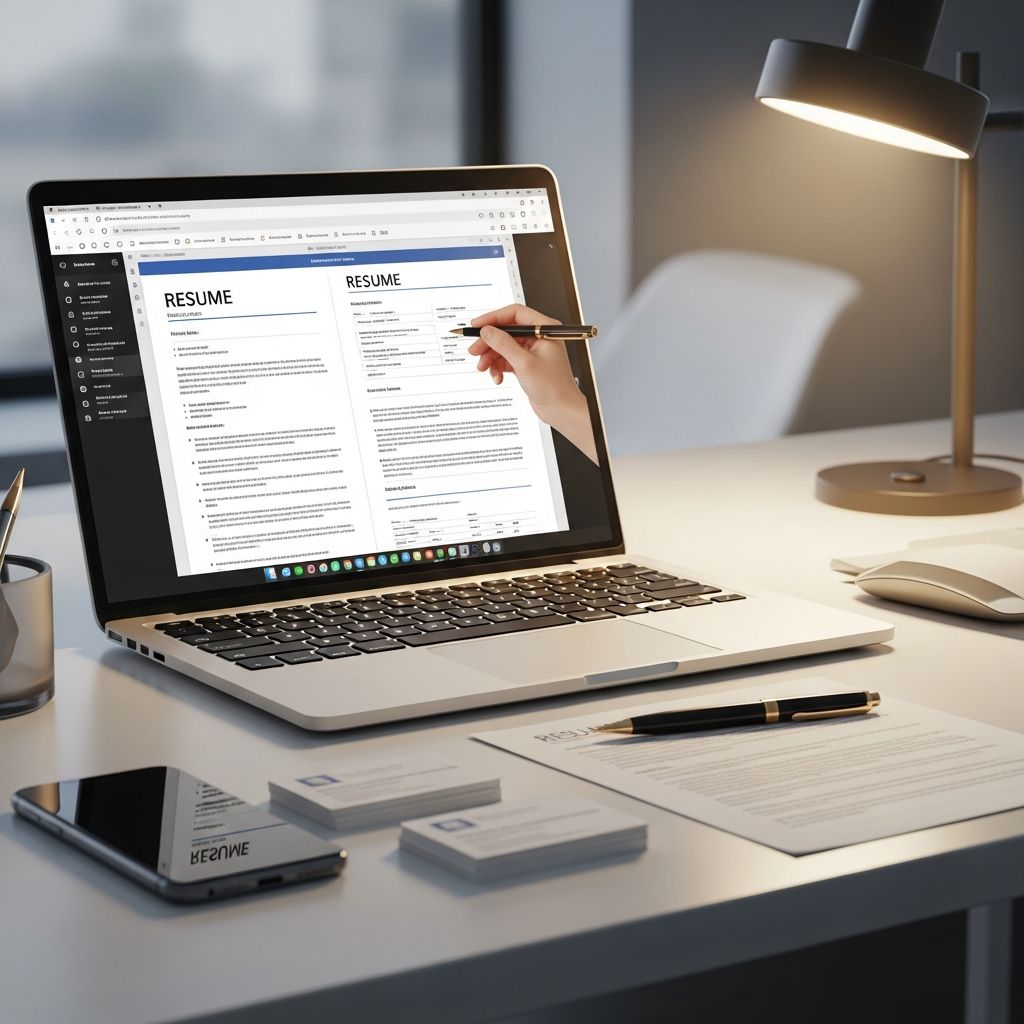
Google Docs offers free, well-designed resume templates that can dramatically speed up your job search—if you know how to customize them correctly. Used strategically, these templates help you focus on your content instead of fighting with formatting, while still producing a professional, polished resume that recruiters can quickly scan and applicant tracking systems (ATS) can read.
This guide walks you through choosing the right Google Docs template, tailoring it for your experience level and industry, and optimizing every section so your resume is both visually appealing and technically effective.
Why Use Google Docs for Your Resume?
Before choosing a template, it helps to understand why Google Docs is such a strong option for resume creation compared with starting from scratch or using design-heavy tools.
- Free and cloud-based: You only need a Google account, and your resume auto-saves and syncs across devices.
- Easy collaboration: You can share your resume with mentors or friends and let them comment directly on the document.
- Clean, scannable formats: Most templates are simple and text-focused, which aligns with best practices from career centers and hiring experts.
- Built-in structure: Sections like experience, education, and skills are already laid out, so you can focus on content instead of layout.
Choosing the Right Google Docs Template for Your Situation
Google Docs includes multiple resume layouts designed for different experience levels and styles. Instead of picking based on appearance alone, match the template to your career story and target roles.
1. Templates for New Graduates and Career Starters
If you have limited work history, choose a template that gives more space to education and skills while still allowing you to highlight projects and activities.
- Look for: A prominent education section near the top, room for coursework, projects, or campus leadership roles, and a concise summary or objective.
- Avoid: Designs that assume a long list of jobs or that bury your education at the very bottom.
Reverse-chronological structure—listing your most recent experiences first—is recommended for most candidates, including students, because it is the format recruiters know best and can skim quickly.
2. Templates for Experienced Professionals
If you have several years of experience, you need a layout that emphasizes your work history and measurable accomplishments.
- Look for: A strong summary section, clearly separated experience entries, and space for bullet points under each role.
- Avoid: Templates that dedicate too much space to graphics or sidebars at the expense of text; these can confuse ATS software.
3. Templates for Career Changers or Non-Linear Paths
Career changers benefit from templates that balance experience with skills and achievements across different roles.
- Look for: Space for a robust skills section, possibly a “Highlights” or “Profile” area near the top, and flexible section headings you can rename.
- Strategy: Even if the template is technically reverse-chronological, you can adapt the section headings to focus on relevant projects or transferable skills.
Quick Comparison of Template Needs
| Candidate Type | Best Layout Features | Sections to Emphasize |
|---|---|---|
| New graduate | Education near top, project space, simple design | Education, projects, skills |
| Mid-career professional | Wide text columns, strong summary, bullet lists | Experience, achievements, selected skills |
| Career changer | Flexible section titles, prominent skills area | Summary, transferable skills, relevant projects |
How to Access and Duplicate Google Docs Resume Templates
Once you have a sense of your needs, it is time to open the templates and create a personal copy.
- Open Google Drive and select New > Google Docs > From a template.
- Browse the Resume section; preview each template until you find one aligned with your situation.
- Create a personal copy and rename your resume with a clear file name, such as Firstname-Lastname-Resume.
- Consider creating separate copies tailored to specific roles or industries.
Customizing the Layout Without Breaking It
One common risk with templates is accidentally destroying the formatting. A few techniques help you modify them safely while keeping a clean, consistent look.
- Edit text, not structure, first: Replace placeholder text line by line. Avoid mass deletions of entire rows or columns, especially if tables are used for layout.
- Use built-in styles: In Google Docs, apply the same heading style (e.g., Heading 2) for all section titles so your resume looks uniform.
- Check margins and spacing: Aim for approximately 1-inch margins and sufficient white space so the document is easy to read on screen and on paper.
- Keep fonts professional: Use simple fonts like Arial, Calibri, or similar, and stick to 11–12 pt for body text and a slightly larger size for headings.
Filling in Each Core Resume Section
Most Google Docs templates include the same essential components. What you write in these sections matters far more than the template name or color scheme.
1. Contact Information
Your contact block should be simple, complete, and error-free.
- Full name
- Phone number that you reliably answer
- Professional email address
- City and state (or region/country, especially for remote roles)
- Optional: LinkedIn URL or portfolio link
Avoid adding personal data like birthdate or photo unless explicitly requested, as many employers in the U.S. and similar markets prefer not to see it, partly for legal and bias-related reasons.
2. Summary or Objective
The short paragraph at the top of most templates is prime real estate. Hiring managers and recruiters often skim this first to decide whether to keep reading.
- Use a summary if you have some professional experience: 2–3 concise sentences that highlight your key strengths and the type of role you are targeting.
- Use an objective if you are early in your career: briefly state your goals and the value you aim to add.
- Include keywords from the job description, especially role titles, skills, or tools mentioned repeatedly.
3. Work Experience
The experience section is the centerpiece for most candidates. Research from career services and hiring experts consistently recommends reverse-chronological ordering—most recent role first—and using bullet points to describe your contributions.
- Include job title, employer, location, and dates for each role.
- Use 3–6 bullet points per recent position; older roles may need fewer.
- Start each bullet with a strong action verb such as led, designed, improved, or implemented.
- Quantify results whenever possible, such as revenue growth, time saved, or error reduction.
A widely recommended formula for strong bullet points is: accomplished X as measured by Y by doing Z—this makes your impact clear and specific.
4. Skills
Skills sections are particularly important for ATS systems and for roles that depend on specific tools or methodologies.
- Separate technical (hard) skills from soft skills such as communication or leadership.
- Use concise bullet lists or short lines separated by commas.
- Limit yourself to skills you can demonstrate; do not overload this section with every possible buzzword.
- Mirror key skills mentioned in the job posting when they genuinely reflect your abilities, as this can help you pass automated screening.
5. Education
For students and recent graduates, education may be placed near the top; for experienced professionals, it typically appears after work experience.
- List degree, institution, location, and graduation date (or expected date).
- Add honors, relevant coursework, or academic projects if they support your candidacy.
- Remove older or less relevant education as you gain more professional experience.
6. Optional Sections
Most Google Docs templates allow you to rename headings or add new ones. Strategic optional sections can help you stand out when used sparingly:
- Projects: Useful for tech, design, research, or early-career candidates.
- Certifications: Ideal for industries with formal credentials, such as IT, finance, and healthcare.
- Volunteer experience: Demonstrates initiative and values, and is especially valuable when you are building experience.
- Publications or presentations: Relevant for academic, research, or thought-leadership roles.
Making Your Google Docs Resume ATS-Friendly
Many employers use applicant tracking systems to scan resumes for keywords and structure before a human ever sees them. Design decisions in your template can either help or hinder this process.
- Stick to simple layouts: Avoid resumes that rely on complex columns, graphics, or text boxes, which some ATS tools struggle to parse.
- Use standard section names: Labels like Experience, Education, and Skills help software interpret your document.
- Save to a compatible format: Many employers prefer PDF, but some ATS systems handle Word or plain text more reliably. Follow instructions in each job posting.
- Integrate job-specific keywords: Borrow language from the posting—especially role titles, tools, and required skills—where it naturally fits your background.
Polishing the Final Version
Once your content is in place, invest time in revising. Hiring experts and university career offices emphasize clarity, brevity, and consistency as key qualities of strong resumes.
- Edit for brevity: Aim for one page for most candidates; two pages may be reasonable for longer experience, but avoid unnecessary detail.
- Check consistency: Use the same date format throughout and consistent punctuation in bullet lists.
- Use active language: Replace long, passive phrases with short, direct statements.
- Proofread carefully: Typos or formatting errors can undermine otherwise strong credentials. Ask someone you trust to review the document.
- Create multiple tailored versions: Save a base resume and duplicate it for each major type of role, then adjust your summary, keywords, and bullet points as needed.
Frequently Asked Questions (FAQs)
Q1: Are Google Docs resume templates really free to use?
Yes. All templates in the official Google Docs template gallery are free for anyone with a Google account. You can create unlimited personal copies, customize them, and download them as needed.
Q2: Will a Google Docs template work with applicant tracking systems?
Most official templates are simple enough to be ATS-compatible, especially when you avoid extra graphics or complex formatting. Focus on standard headings, clear text, and keyword-rich content to maximize compatibility.
Q3: Should I always keep my resume to one page?
Career services and resume experts often recommend a single page for students and early- to mid-career professionals, as it forces you to prioritize your most relevant information. Candidates with extensive experience or academic backgrounds may reasonably use two pages, but every line should still earn its place.
Q4: Can I change the colors or fonts in a Google Docs resume template?
Yes, you can adjust fonts, colors, and spacing. However, keep the design simple and accessible: avoid low-contrast combinations, stick to one or two typefaces, and ensure that visual changes do not reduce legibility or confuse ATS software.
Q5: How often should I update a Google Docs resume?
It is wise to refresh your resume regularly—at least every few months or whenever you complete a major project, earn a new credential, or change job targets. Keeping a current version makes it easier to apply quickly when opportunities arise.
References
- The Best Resume Format for 2025 (Templates & Examples) — Resume Genius. 2024-08-01. https://resumegenius.com/blog/resume-help/resume-format
- 10 Resume Writing Tips To Help You Land a Position — Indeed Career Guide. 2024-04-15. https://www.indeed.com/career-advice/resumes-cover-letters/10-resume-writing-tips
- How to Make a Resume in 2025 | Beginner’s Guide — Novorésumé. 2025-01-05. https://novoresume.com/career-blog/how-to-write-a-resume-guide
- 30 Resume Writing Tips for 2025 — Resume Mansion. 2025-02-10. https://www.resumemansion.com/article/30-resume-writing-tips-for-2025
- Create a Strong Resume — Harvard University, Mignone Center for Career Success. 2023-09-12. https://careerservices.fas.harvard.edu/resources/create-a-strong-resume/
- 16 Top Resume Tips to Help You Land a Job in 2026 — Coursera Career Guide. 2024-11-03. https://www.coursera.org/articles/resume-tips

- Integrated M.A. in Applied Linguistics, University of Hyderabad
- 5+ years in editorial, instructional, SEO, and research-based writing
Sneha is a relationships and lifestyle writer with a strong foundation in applied linguistics and certified training in relationship coaching. She brings over five years of writing experience to theskillvault, crafting thoughtful, research-driven content that empowers readers to build healthier relationships, boost emotional well-being, and embrace holistic living. Her writing and insights reflect the belief that beauty, happiness, and wellness…