
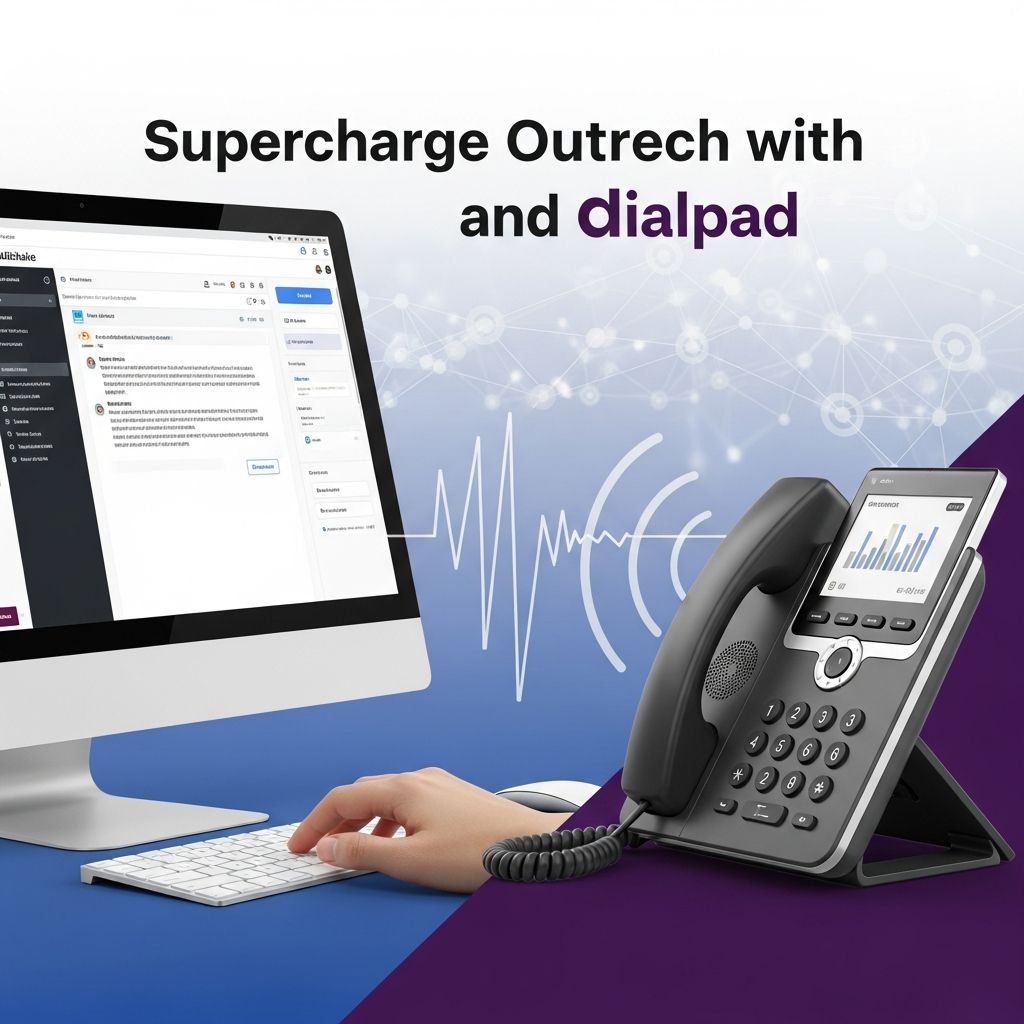
Modern sales teams rarely win deals through a single channel. Prospects expect a coordinated blend of email, phone, and SMS, supported by accurate data and timely follow-up. Connecting Mailshake, a cold outreach platform, with Dialpad, a cloud-based business phone and contact center solution, helps teams orchestrate that multi-channel motion while keeping every interaction in sync.
This guide explains what the Mailshake–Dialpad integration enables, why it matters for high-velocity sales teams, and how to implement and optimize it using third-party automation tools such as Zapier.
Why Combine Mailshake and Dialpad?
Mailshake focuses on scalable outbound email and multi-step sequences, while Dialpad provides voice and SMS capabilities, including AI-powered assistance for calls and contact center workflows. When you connect the two, you unlock a workflow where email, calls, and text messages reinforce one another instead of living in separate silos.
- Single view of prospect activity – Call outcomes, voicemails, and SMS replies can be reflected directly in Mailshake, giving context to ongoing campaigns.
- Faster reaction to buying signals – Inbound calls or voicemails in Dialpad can trigger new leads, task creation, or sequence enrollment automatically.
- More relevant follow-up – Updated lead statuses based on call results ensure prospects receive messaging that matches their current interest level.
- Less manual admin – Automations reduce the need to copy notes between tools or remember to pause/restart campaigns after calls.
How the Integration Works at a High Level
The Mailshake–Dialpad connection is typically implemented as a third-party integration using automation platforms such as Zapier, Integrately, Relay.app, or similar tools. These platforms listen for events (called triggers) in one app and then execute actions in the other.
| From | Trigger in Source App | Automation Platform | Action in Target App |
|---|---|---|---|
| Dialpad | Inbound call, outbound call, voicemail, new SMS | Zapier / similar | Create or update lead, change status, pause/unpause |
| Mailshake | New lead, sequence event, link click, status change | Zapier / similar | Send SMS, schedule call, create contact in Dialpad |
Because this is not a purely native, one-click integration, you retain flexibility to define what each event means for your specific sales process.
Key Use Cases for Sales and Marketing Teams
While the integration can support many custom workflows, a few patterns are especially helpful for outbound sales and lead nurturing.
1. Turn Phone Activity into Campaign Intelligence
Every conversation that happens over the phone tells you something about the prospect’s intent. By converting Dialpad events into Mailshake updates, you prevent that insight from being lost.
- Create new leads from inbound calls – When an unknown number calls a sales or campaign line in Dialpad, automatically create a new lead in Mailshake and populate it with the caller’s number and call details.
- Update lead status after calls – When a rep finishes an outbound call in Dialpad, use the call disposition (e.g., interested, not interested, follow-up later) to update the corresponding Mailshake lead status.
- Log voicemails as touchpoints – For missed calls or voicemails, attach a note in Mailshake so future emails can reference the voicemail and context.
This approach keeps Mailshake functioning as the central timeline of prospect engagement, while Dialpad remains the system of record for telephony and call recordings.
2. Coordinate SMS and Email Follow-ups
Dialpad supports SMS messaging in addition to voice calls, allowing reps to continue conversations via text. When integrated with Mailshake, SMS events can control email sequence logic.
- Unpause recipients when they text back – If a prospect replies to a Dialpad SMS, automatically unpause or advance them in a Mailshake campaign so they receive context-aware email follow-ups.
- Pause email when SMS gets a strong response – If a text message leads to a booked meeting or clear disqualification, pause or stop the email sequence to avoid redundant outreach.
- Trigger SMS after key email actions – When a Mailshake recipient clicks a high-intent link (like a pricing page), trigger a personal text through Dialpad to ask if they have questions or want to talk live.
3. Route Qualified Prospects to Live Conversations
Email is ideal for discovery and education, but closing complex deals often requires a conversation. By integrating Mailshake and Dialpad, you can automatically hand off qualified prospects from email to phone at exactly the right time.
- Call after multiple positive signals – When a Mailshake lead opens several emails, clicks key links, or replies positively, send their details into Dialpad and create a call task.
- Use Dialpad AI for coaching – Dialpad’s AI features, such as real-time speech analytics and coaching, can assist reps during these critical calls by suggesting responses or detecting sentiment.
- Feed call outcomes back to Mailshake – After the call, update Mailshake to reflect whether the lead moved to an opportunity, requested follow-up, or declined.
4. Centralize Reporting Across Channels
When both tools share data, you can better analyze how sequences that include calls and SMS perform versus email-only flows.
- Compare performance of campaigns with call+email versus email-only.
- Attribute meetings and revenue to the combined sequence instead of just individual touchpoints.
- Identify bottlenecks where prospects engage by email but never receive follow-up calls.
Core Components of the Integration
To implement the Mailshake–Dialpad connection, it helps to understand the core building blocks: triggers, actions, and data fields.
Typical Dialpad Triggers
- New inbound call received
- Outbound call completed
- Voicemail received
- New SMS sent or received
Typical Mailshake Actions
- Create a new lead (with phone number and basic attributes)
- Update existing lead (status, custom fields, notes)
- Pause or unpause a recipient in an active campaign
- Start or stop a campaign for a specific lead
Common Data Points to Map
- Phone number (primary key to match leads between apps)
- Contact name and company (where available)
- Call direction (inbound/outbound)
- Call result or disposition (e.g., no answer, follow-up requested)
- Timestamp and duration
- Call recording or voicemail URL (if you store it as a custom field or note)
Step-by-Step: Designing a Simple Automation Flow
Exact steps vary by automation platform, but the overall process is similar across tools like Zapier, Relay.app, Integrately, or Appy Pie.
- Define your goal
Decide what business outcome you want, such as “create a Mailshake lead from every inbound sales call” or “pause campaigns when a prospect calls back.” - Choose the trigger app and event
In your automation tool, select Dialpad as the trigger app and pick the relevant event (e.g., “new inbound call”). - Connect both accounts
Authenticate your Dialpad and Mailshake accounts inside the automation service. Confirm you can pull sample data from both. - Set up field mappings
Map Dialpad data fields (caller number, name, etc.) to the appropriate lead fields in Mailshake. Decide how to handle missing data. - Add filters and conditions
Use filters to limit the automation to certain lines, call types, or dispositions (e.g., only calls to your sales number). - Define Mailshake actions
Configure whether the automation should create a lead, update an existing one, or change campaign status. - Test thoroughly
Run test calls and messages to confirm leads are created and updated correctly, and that no duplicates appear unnecessarily. - Monitor and refine
Start with a small subset of reps or campaigns. Adjust based on feedback and data quality before rolling out widely.
Best Practices for a Clean, Reliable Setup
Because this integration drives automation across multiple systems, thoughtful design is essential to avoid confusion or data sprawl.
1. Use Phone Number as a Consistent Identifier
Phone numbers are usually the most reliable key for linking Dialpad contacts to Mailshake leads. Decide on a standard format (e.g., E.164 with country code) and ensure both systems store it consistently.
2. Protect Against Duplicate Leads
Before creating a new lead from a call, check if a lead with the same phone number already exists in Mailshake. Most automation tools provide a “find or create” step to accomplish this.
3. Keep Campaign Logic Simple
Resist the temptation to create overly complex webs of automations at first. Start with a small number of clear rules, such as:
- Inbound call → create or update Mailshake lead.
- Voicemail received → add note and schedule follow-up step.
- Positive SMS reply → unpause campaign and send tailored email.
4. Align With Your CRM Strategy
If you also sync Mailshake with a CRM such as Salesforce or HubSpot, ensure that lead status changes triggered by Dialpad are compatible with your CRM lifecycle stages. Map Mailshake statuses to CRM fields so that calls and emails tell a consistent story about where the lead is in the funnel.
5. Train Reps on the New Workflow
Technology alone does not guarantee better results. Reps should understand what happens when they select certain call dispositions in Dialpad, and how those choices affect Mailshake campaigns and follow-up tasks.
Strategic Benefits for Sales Leadership
Beyond saving time, the Mailshake–Dialpad integration provides strategic advantages for sales managers and revenue leaders.
- Higher-quality conversations – Pairing Mailshake’s outreach with Dialpad’s AI call assistance can help reps adjust their speech, pacing, and talk-listen ratio in real time.
- More accurate forecasting – Centralizing email, call, and SMS outcomes in one place produces a more realistic picture of pipeline health and conversion rates.
- Clearer coaching opportunities – Managers can see which email sequences lead to successful calls, and which calls consistently fail to move prospects forward.
- Scalable playbooks – Once effective email+phone sequences are proven, they can be templatized and rolled out to new reps with minimal friction.
Security, Privacy, and Compliance Considerations
Integrating communication tools means handling potentially sensitive customer data. Teams should review security and compliance implications before activating new workflows.
- Data minimization – Only pass the data elements between apps that you truly need for outreach and reporting.
- Access control – Ensure that only authorized team members can see call recordings, SMS transcripts, and sensitive fields, according to your company policies.
- Regulatory compliance – For regions covered by GDPR or similar regulations, confirm lawful bases for processing contact data and respect do-not-contact preferences in every system.
- Retention policies – Decide how long to retain call and SMS metadata and make sure it matches your organization’s data retention guidelines.
Frequently Asked Questions (FAQs)
Q1: Is the Mailshake–Dialpad integration native?
No. Mailshake integrates with Dialpad primarily through third-party automation platforms such as Zapier, Integrately, Relay.app, and similar tools, which connect events from one app to actions in the other.
Q2: Do I need technical skills to set this up?
Most integrations can be configured by non-developers using no-code automation builders. However, more advanced workflows or complex data mappings may benefit from help from an operations or technical specialist.
Q3: Can I trigger Dialpad actions from Mailshake?
Yes. Event triggers in Mailshake, such as new leads or specific campaign activities, can be used to initiate actions in Dialpad, including creating contacts or sending SMS messages, depending on your automation platform’s capabilities.
Q4: How does this affect my CRM integrations?
If your CRM already connects to Mailshake and/or Dialpad, the new automations should be designed so that lead status changes remain consistent across all three systems. Consider documenting your lead lifecycle and mapping fields before turning the workflows on.
Q5: What metrics should I track after enabling the integration?
Helpful metrics include connection rates for calls following email touches, meeting-booked rate for integrated sequences vs. email-only sequences, time-to-first-call after a positive email response, and conversion rates by call disposition.
References
- Mailshake Dialpad 3rd Party Integration — Mailshake. 2024-03-01. https://mailshake.com/integrations/dialpad/
- Top Mailshake Integrations You Should Know About in 2025 — Woodpecker.co. 2025-01-10. https://woodpecker.co/blog/mailshake-integrations/
- The Complete Dialer Guide for 2025 — Mailshake. 2025-02-15. https://mailshake.com/blog/power-dialer/
- 50 Sales Tools to Help Your Team Close More Leads — Mailshake. 2023-09-20. https://mailshake.com/blog/sales-tools/
- Connect Dialpad to Mailshake – Integrations — Relay.app. 2024-06-05. https://www.relay.app/apps/dialpad/integrations/mailshake
- How to integrate Dialpad & Mailshake | 1 click integrations — Integrately. 2024-04-18. https://integrately.com/integrations/dialpad/mailshake
- dialpad Mailshake Integration — Appy Pie Automate. 2024-02-11. https://www.appypieautomate.ai/integrate/apps/dialpad/integrations/mailshake

- Integrated M.A. in Applied Linguistics, University of Hyderabad
- 5+ years in editorial, instructional, SEO, and research-based writing
Sneha is a relationships and lifestyle writer with a strong foundation in applied linguistics and certified training in relationship coaching. She brings over five years of writing experience to theskillvault, crafting thoughtful, research-driven content that empowers readers to build healthier relationships, boost emotional well-being, and embrace holistic living. Her writing and insights reflect the belief that beauty, happiness, and wellness…