
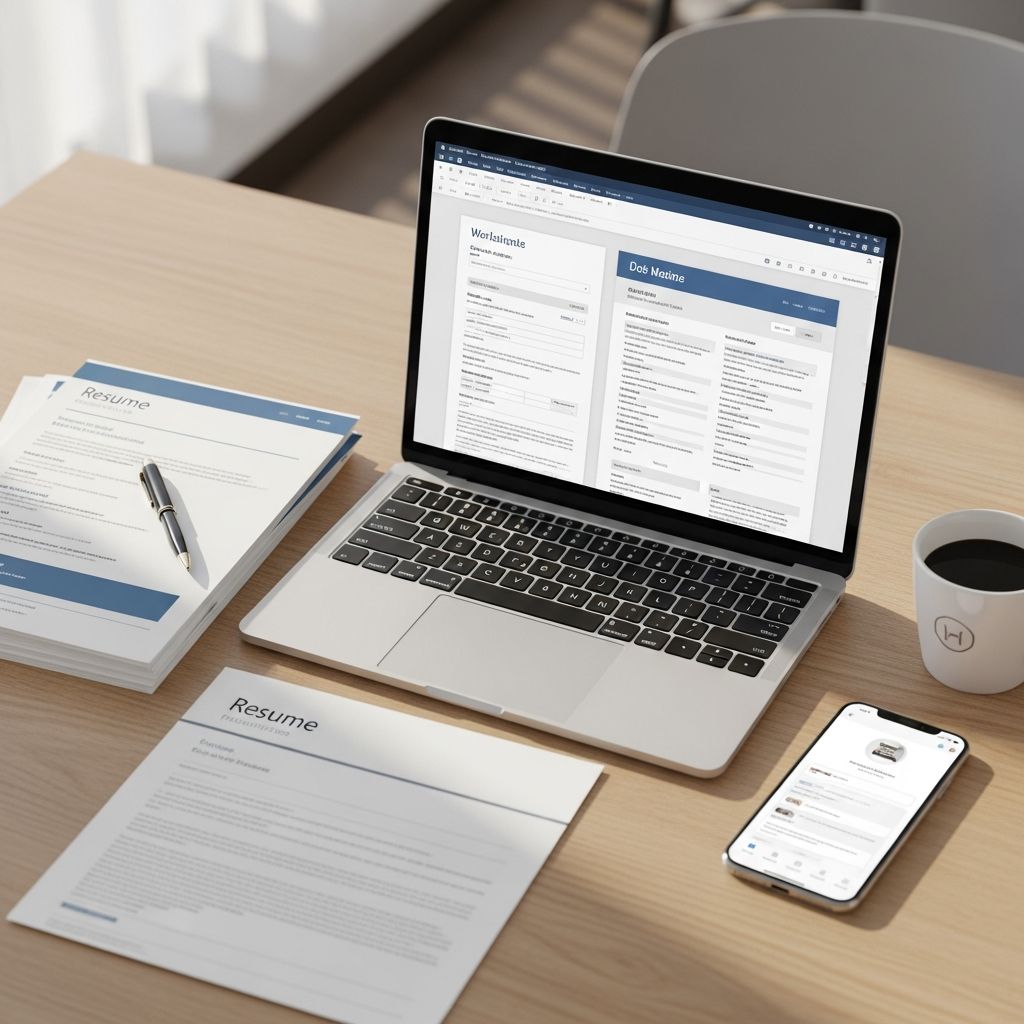
Microsoft Word resume templates can dramatically speed up your job search—if you know how to choose the right design, customize it effectively, and keep it friendly to both recruiters and applicant tracking systems (ATS). Used poorly, they produce generic, cluttered resumes; used well, they help you present a polished, professional profile in minutes.
This guide explains how to work with Word resume templates strategically, from selecting the right layout to fine-tuning the content and avoiding formatting mistakes that can cost you interviews.
Why Word Resume Templates Still Matter
Despite the growth of online builders and design tools, many employers still ask for resumes in Word or PDF format, and Word remains one of the most widely used tools for creating them.
- Ubiquity: Word is available in most workplaces and on many personal devices, so recruiters can easily open your file.
- Control: You can fine-tune fonts, margins, and spacing without needing design software.
- Compatibility: Properly structured Word resumes convert cleanly to PDF and are easier for ATS to scan than heavily designed formats.
- Speed: Templates give you an instant layout so you can focus on content instead of starting from a blank page.
Understanding the Main Resume Layout Styles
Before picking a Word template, it helps to understand the three core resume layout styles that most templates are built around.
| Format | Primary Focus | Best For | Potential Drawback |
|---|---|---|---|
| Reverse-chronological | Recent work experience and career progression | Most professionals with a steady work history | Less ideal for major gaps or frequent job changes |
| Functional (skills-based) | Skills and competencies rather than dates | Some career changers, portfolio-based roles | Can raise questions about what you did and when; often discouraged by recruiters |
| Combination / hybrid | Skills plus a concise work history | Experienced professionals, senior roles, or career transitions | Takes more time to customize effectively |
For most applicants, a reverse-chronological or combination resume built in Word is the safest choice, as it aligns with how recruiters review resumes and how ATS systems parse data.
Types of Word Resume Templates and When to Use Them
Word templates vary widely in style. Choosing the right overall look should reflect both your industry and your personal brand.
1. Classic, Single-Column Templates
These feature a straightforward layout with all sections stacked vertically.
- Ideal for traditional fields such as finance, law, government, and academia.
- Easy to skim, with minimal design elements.
- Highly compatible with ATS when headings and text use standard styles.
Choose this style if you want maximum clarity and you are applying to conservative or highly regulated industries.
2. Modern Two-Column Templates
Two-column designs use the left or right side for supporting information (skills, contact details) and the main column for experience.
- Helpful for fitting more content on one page without shrinking font size.
- Visually separates core experience from secondary details.
- Suited to marketing, tech, consulting, and roles that value organized information at a glance.
When using two columns, test how your resume converts to plain text to make sure the reading order remains logical for ATS.
3. Minimalist Designs
Minimalist templates focus on typography, spacing, and simplicity.
- Use neutral fonts, plenty of white space, and subtle section dividers.
- Perfect for roles where content quality matters more than visual flair, such as research, analysis, and operations.
- Reduce distractions so recruiters focus on your achievements.
4. Creative and Visual Templates
Creative Word designs may use color blocks, icons, or graphic elements.
- Suitable for design, media, advertising, and some startup roles where visual identity matters.
- Can differentiate you—a memorable layout is more likely to be recalled later.
- Require careful editing to remain ATS-friendly: avoid text embedded in images or shapes.
If in doubt, create two versions: a visually rich PDF for human readers and a simplified Word version for systems that request it.
Key Elements Every Word Resume Template Should Include
Regardless of design, strong resumes share a common set of sections that recruiters and career centers consistently recommend.
- Contact information: Name, professional email, phone, location (city/region), and optionally a LinkedIn URL.
- Summary or profile: A 3–4 line snapshot highlighting your most relevant strengths and achievements.
- Work experience: Roles, employers, locations, dates, and bullet points emphasizing measurable results.
- Skills: A focused list that matches the job description—ideally grouped (technical skills, tools, languages, etc.).
- Education: Degrees, institutions, locations, and graduation dates, plus honors or relevant coursework if early career.
- Optional extras: Certifications, projects, publications, volunteer work, or professional affiliations.
How to Customize a Word Resume Template Step by Step
To turn a generic Word template into a targeted resume, work through these steps systematically.
Step 1: Analyze the Job Description
- Highlight repeated skills, tools, or responsibilities.
- Note the seniority level and whether the role emphasizes leadership, technical depth, or client interaction.
- Capture any industry-specific keywords that should appear naturally in your resume.
Step 2: Choose an Appropriate Layout
- Use a reverse-chronological template for most roles.
- Use a combination style if you need to highlight both skills and extensive experience.
- Avoid heavily functional formats unless you have a clear reason and can still show a complete, honest work history.
Step 3: Replace Placeholder Content Carefully
When editing a template, type over the existing text rather than adding new text boxes or shapes.
- Maintain built-in heading styles (e.g., using Word’s “Heading” styles) to keep structure consistent.
- Delete any unnecessary sections entirely instead of leaving them blank.
- Check that bullets are aligned and spacing is consistent from top to bottom.
Step 4: Write Impactful Bullet Points
Strong bullet points focus on accomplishments and outcomes rather than simple duties.
- Start each bullet with a strong verb: led, improved, designed, implemented, analyzed.
- Include metrics when possible: percentages, revenue, time saved, volume handled.
- Connect your work to business results, such as efficiency, quality, cost savings, or customer satisfaction.
Step 5: Optimize for ATS and Readability
Applicant tracking systems parse resumes to identify relevant keywords and structure. Good formatting helps prevent data loss.
- Use standard section headings like Experience, Skills, and Education.
- Avoid placing essential information inside text boxes, images, or complex tables.
- Use a standard font (e.g., Calibri, Arial, Times New Roman) in 10–12 pt for body text.
- Save and send as PDF if allowed, but keep a Word copy for online applications that request it.
Common Mistakes When Using Word Resume Templates
Even strong candidates can lose opportunities through preventable formatting and content errors.
- Leaving default sample text: Failing to replace all placeholder content undermines credibility immediately.
- Overusing graphics: Heavy use of shapes, icons, or charts can confuse ATS and distract recruiters.
- Cramped text: Shrinking fonts or margins to fit too much on one page makes your resume hard to read.
- Inconsistent dates and formatting: Use one date format (e.g., “Jun 2023 – Present”) and one bullet style throughout.
- Generic summaries: A vague profile that could fit any applicant fails to differentiate you.
Adapting Word Templates for Different Career Stages
What you emphasize in a template depends heavily on where you are in your career.
Students and Entry-Level Candidates
- Move Education above Experience, especially if your professional history is limited.
- Include projects, internships, part-time work, and relevant coursework.
- Highlight transferable skills: research, teamwork, communication, and technology.
Mid-Career Professionals
- Prioritize recent roles and accomplishments over early positions.
- Group older or less relevant roles under a brief “Additional Experience” section.
- Use a combination layout if you need to showcase both technical and leadership capabilities.
Senior and Executive Applicants
- Open with a strong executive summary instead of an objective statement.
- Emphasize strategic impact: growth, transformation, turnarounds, or large-scale initiatives.
- Consider extending to a second page if needed, while keeping the most critical information on page one.
Tailoring Templates to Different Industries
Industry expectations strongly influence what makes a resume look “professional.” Research indicates that customized resumes aligned to the job posting yield significantly higher callback rates than generic ones.
- Corporate & Finance: Choose clean, neutral templates; avoid bright colors and heavy graphics.
- Technology: Use modern layouts with a dedicated technical skills section and space for projects.
- Creative Fields: Consider tasteful use of color or typographic hierarchy, but keep core content machine-readable.
- Public Sector & Nonprofits: Favor clear, well-structured chronological templates that foreground responsibilities and outcomes related to mission or policy.
- Academia & Research: For positions requiring a CV, adapt Word templates into multi-page documents with publications, conferences, and grants listed in detail.
Quick Quality Checklist Before You Send
Use this brief checklist each time you finalize a Word resume file:
- All placeholders replaced with your own information.
- Section headings are standard and in logical order.
- Font, line spacing, and bullet style are consistent.
- File name is professional (e.g., Firstname-Lastname-Resume.docx).
- You have tested the file by copying all content into a plain-text editor to see how ATS might read it.
Frequently Asked Questions About Word Resume Templates
Q: Should I use a one-page or two-page Word resume template?
Most early-career professionals should keep resumes to one page. More experienced professionals can use a second page if it adds genuinely relevant detail and the first page clearly summarizes their value.
Q: Are Word resume templates ATS-friendly?
They can be, provided you avoid text boxes, images, and unusual fonts, and use standard headings and simple layouts. Many ATS systems are optimized for Word or PDF documents with basic formatting.
Q: Is it acceptable to use color in a Word resume template?
Yes, subtle color accents for headings or dividers can improve readability, especially for modern industries. However, ensure there is enough contrast for accessibility, and avoid placing essential information in colored shapes that may not parse correctly.
Q: How many Word resume versions should I maintain?
Keep a “master” resume with your full experience and create tailored copies for specific roles or industries. Adjust the summary, skills, and bullet points to match each job description more closely.
Q: Is it better to submit my resume in Word or PDF?
Follow the employer’s instructions. If both are allowed, PDFs preserve layout more reliably, but some online systems specifically request Word files for parsing. Having both versions ready ensures you can respond quickly to any requirement.
References
- Create a Strong Resume — Harvard University, Mignone Center for Career Success. 2023-08-01. https://careerservices.fas.harvard.edu/resources/create-a-strong-resume/
- The Best Resume Format for 2025 — ResumeGenius. 2024-04-10. https://resumegenius.com/blog/resume-help/resume-format
- 5 Resume Formats That Will Dominate 2025 (And 3 That Are Now Obsolete) — The Interview Guys. 2024-01-15. https://blog.theinterviewguys.com/5-resume-formats-that-will-dominate/
- Free Resume Templates for 2025 [Download Now] — ResumeBuilder. 2024-06-05. https://www.resumebuilder.com/resume-templates/
- Free Resume Templates for 2025 — Zety. 2024-07-20. https://zety.com

- Integrated M.A. in Applied Linguistics, University of Hyderabad
- 5+ years in editorial, instructional, SEO, and research-based writing
Sneha is a relationships and lifestyle writer with a strong foundation in applied linguistics and certified training in relationship coaching. She brings over five years of writing experience to theskillvault, crafting thoughtful, research-driven content that empowers readers to build healthier relationships, boost emotional well-being, and embrace holistic living. Her writing and insights reflect the belief that beauty, happiness, and wellness…