
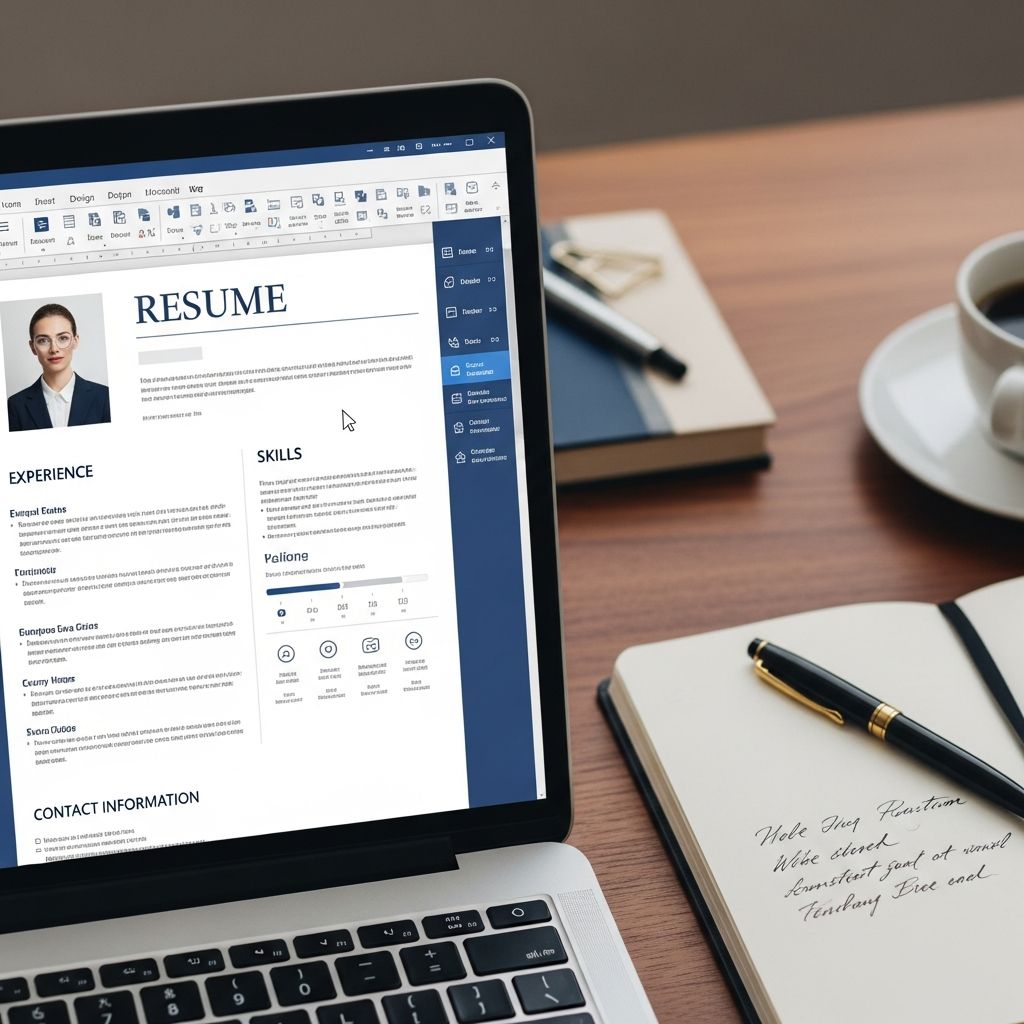
Microsoft Word remains one of the most accessible tools for creating a professional resume. When combined with solid resume writing principles and modern formatting practices, it can help you produce a document that looks polished, reads clearly, and performs well in applicant tracking systems (ATS).
Why Microsoft Word Is Still a Strong Choice
Although you may see many online builders and design tools, Word continues to be widely used and accepted by employers. Career services offices at major universities still provide Word-based resume templates and guidance because:
- ATS compatibility: Most applicant tracking systems parse .docx and PDF files generated from Word without issues, as long as formatting is simple.
- Universal access: Recruiters, hiring managers, and career centers almost always have access to Microsoft Word or compatible software.
- Full control: You can fine-tune fonts, spacing, and sections rather than being locked into a rigid online template.
Preparing Your Document Before You Start Writing
Before adding content, set up Word so your resume is visually clean and easy to scan. Many university career centers emphasize clear, concise formatting as the foundation of a strong resume.
Page Setup and Margins
- Use Letter size (8.5 x 11 in) for roles in North America, or A4 in many other regions.
- Start with margins of 1 inch on all sides; you can reduce to 0.5–0.75 inches if you need more space without overcrowding.
- Keep the resume to one page for most candidates, especially early to mid-career. Two pages may be appropriate for experienced professionals.
Fonts and Text Styling
- Select simple, widely available fonts such as Calibri, Arial, Times New Roman, or similar clean sans-serif or serif options.
- Use 10–12 pt for body text and 12–16 pt for your name at the top.
- Rely primarily on bold and all caps for headings; avoid script fonts, heavy colors, or graphics that can confuse ATS systems.
Using Simple Layout Tools in Word
To maintain a clean structure while keeping formatting ATS-friendly:
- Use left alignment for most content instead of full justification, which can create uneven spacing.
- Rely on tabs or simple two-column layouts using tables with borders turned off, rather than text boxes or shapes.
- Turn on Word’s Show/Hide formatting marks while editing so you can see spacing and line breaks clearly.
Building the Core Sections of Your Resume
Most career centers recommend a consistent set of core sections: contact information, a brief profile or summary, experience, education, and skills.
Contact Information Block
Place this at the top of the page and make it easy to read at a glance.
- Name: First and last name in a larger, bold font.
- Phone: A direct, professional number with a reliable voicemail.
- Email: A professional email address that uses your name (avoid nicknames).
- Location: City and state or region; full street address is optional in many modern resumes.
- Links (optional): URL to your LinkedIn profile or portfolio, formatted as short, clean links.
Professional Summary or Objective
Directly under your contact details, add a 2–4 line section that orients the reader. University and employer guides increasingly suggest concise summaries that highlight your value.
| Type | When to Use | Focus |
|---|---|---|
| Professional Summary | When you have relevant experience | Key achievements, skills, and domain expertise |
| Career Objective | Students, recent graduates, or career changers | Career goals plus relevant skills and strengths |
Tips for this section:
- Include your role or field, a sense of experience level, and 2–3 top strengths.
- Align language with the job description, especially critical skills and technologies.
- Keep this paragraph scan-friendly—avoid long, complex sentences.
Work and Experience Section
Research from career offices shows that employers often scan your experience section first and for only a few seconds. Organize it so your impact is immediately visible.
- List roles in reverse chronological order, starting with the most recent.
- For each entry, include:
- Job title
- Organization name
- City and state or country
- Start and end dates (month and year)
- Under each position, use 3–6 bullet points describing achievements and responsibilities.
To make bullets more effective:
- Start each bullet with a strong action verb (e.g., led, developed, improved, implemented).
- Quantify results whenever possible: numbers, percentages, time saved, or scale of work.
- Highlight outcomes, not just tasks (e.g., \”improved processing time\” rather than only \”processed forms\”).
- Prioritize bullets that reflect skills the employer has emphasized in the job description.
Education Section
Place this near the top if you are still a student or a recent graduate; otherwise, it can follow your experience.
- Include your degree, institution name, and expected or actual graduation date.
- Mention your major/minor and any relevant concentrations.
- Optionally add:
- GPA, if strong and recent (many career centers suggest including it if it is a positive differentiator).
- Honors, awards, or notable academic projects.
- Coursework closely aligned with the position.
Skills Section
A distinct skills section helps both human readers and ATS quickly confirm your qualifications.
- Separate technical (hard) skills and interpersonal (soft) skills where appropriate.
- Include tools, programming languages, platforms, or certifications directly cited in the job posting.
- Use concise bullet points or a clean, comma-separated list; avoid long, narrative descriptions.
Optional Sections to Strengthen Your Resume
Depending on your background, you can add sections that reinforce your fit for the role.
- Certifications & Licenses: Particularly important for regulated or technical fields.
- Projects: Useful for students, career changers, or technical roles; describe the problem, tools used, and results.
- Volunteer Experience: Demonstrates initiative, leadership, and community involvement.
- Awards & Honors: Scholarships, competitions, or recognition that signals performance.
- Professional Memberships: Relevant associations and societies that show engagement with your field.
Making Your Resume ATS-Friendly in Word
Modern resumes must work for both humans and software. Many employers use ATS to store, search, and filter applications, so formatting choices in Word matter.
Formatting Practices That Help ATS
- Use standard headings like \”Experience,\” \”Education,\” and \”Skills\” that systems can recognize.
- Save your file as a .docx or a simple PDF exported from Word (unless the employer specifies one format).
- Avoid placing crucial information in headers, footers, text boxes, or images, which some ATS tools may ignore.
- Do not rely on icons, charts, or unusual symbols to convey important information.
Using Job Description Keywords Strategically
Resume trends show that strategic use of keywords is central to getting through ATS screening in 2025.
- Identify skills, tools, and role titles that appear frequently in the job posting.
- Incorporate these terms naturally into your summary, experience bullets, and skills list.
- Use the employer’s specific wording where accurate (for example, \”data analysis\” vs. \”data analytics\”).
Design Tips for a Clean, Modern Resume in Word
Research on current resume trends emphasizes simple, minimalistic layouts that focus on readability.
Balancing Simplicity and Visual Appeal
- Use one or two font styles at most (e.g., one for headings, one for body text).
- Apply consistent spacing between sections (e.g., slightly larger space above each heading).
- Use bold or small caps for section titles rather than decorative fonts.
- If you use color, keep it subtle (e.g., a single accent color for headings) and ensure strong contrast for accessibility.
Leveraging Word’s Built-In Features
- Use Styles (Heading 1, Heading 2, etc.) for consistency and quick global changes.
- Use bulleted lists instead of manual dashes so spacing and alignment remain uniform.
- Consider simple two-column layouts (created with tables) to place shorter sections such as skills or contact information in a side column.
Editing, Proofreading, and Final Checks
Many employers and career offices stress that small errors can cost candidates interviews, even when experience is strong.
- Use Word’s spelling and grammar tools but do not rely on them alone.
- Print a copy or export to PDF to catch formatting issues that are less visible on screen.
- Ask a trusted colleague, mentor, or career advisor to review the document for clarity and accuracy.
- Confirm that all dates, job titles, and organization names are consistent with your application forms and professional profiles.
Common Resume Mistakes to Avoid in Word
By steering clear of a few frequent errors, you increase your chances of making a strong first impression.
- Overly busy design: Dense graphics, multiple columns, and decorative elements can distract readers and confuse ATS tools.
- Too much text: Large blocks of text without bullets are difficult to scan in the few seconds employers devote to an initial review.
- Unclear role focus: Leaving out a summary or tailoring can make it harder for hiring managers to see how you fit a specific position.
- Outdated or irrelevant content: Old or loosely related roles can crowd out more relevant experience.
- Inconsistent formatting: Misaligned dates, changing fonts, and uneven bullet spacing can make an otherwise strong resume look unpolished.
Frequently Asked Questions
Q1: Should I use a Word template or start from a blank document?
Both approaches can work. A simple built-in Word template can save time and provide a solid structure, but make sure it uses straightforward headings, avoids heavy graphics, and can be easily customized. Starting from a blank page offers more control and may reduce the risk of hidden formatting that confuses ATS.
Q2: Is it better to send a PDF or a Word file?
Follow the employer’s instructions exactly. If no format is specified, a high-quality PDF exported from Word helps preserve layout, while a .docx file may be preferred for some online systems. Many career services suggest keeping a version in both formats so you can upload what each application requests.
Q3: Can I include a photo or graphics in a Word resume?
For most roles and regions, it is better to avoid photos and decorative graphics. They can cause ATS parsing issues and may raise bias concerns. In creative fields where visual portfolios matter, it is often more effective to link to an external portfolio site rather than embedding design elements directly into the resume.
Q4: How long should my resume be?
Early-career candidates and most professionals can usually keep to a single page. Two pages may be appropriate if you have extensive, directly relevant experience, publications, or leadership roles. In all cases, prioritize clarity and relevance over length.
Q5: How often should I update my Word resume?
Update your resume each time you complete a major project, earn a new credential, or prepare to apply for a new role. Keeping a master version in Word that you periodically refine makes it easier to tailor shorter, targeted versions for specific applications.
References
- CREATE A STRONG RESUME — Harvard University, Mignone Center for Career Success. 2023-01-10. https://careerservices.fas.harvard.edu/resources/create-a-strong-resume/
- Resume Resources — University of Michigan, University Career Center. 2022-08-15. https://careercenter.umich.edu/article/resume-resources
- How To Make Your Resume Comprehensive (With Examples) — Indeed Editorial Team. 2023-09-07. https://www.indeed.com/career-advice/resumes-cover-letters/how-to-make-a-resume-with-examples
- Current Resume Trends for 2025 — ResumeBuilder.com. 2024-11-05. https://www.resumebuilder.com/career-center/resume-trends/
- Resumes, Cover Letters, Portfolios, and CVs — MIT Career Advising & Professional Development. 2023-03-20. https://capd.mit.edu/channels/make-a-resume-cover-letter-cv/

Medha Deb is an editor with a master's degree in Applied Linguistics from the University of Hyderabad. She believes that her qualification has helped her develop a deep understanding of language and its application in various contexts. Medha specializes in the areas of beauty, health, sports, and wellness and is committed to ensuring that the content on the website is…