
Understanding Linux as an Educational Platform
Linux represents a powerful and accessible entry point for children into the world of computing and technology. Unlike proprietary operating systems, Linux offers transparency, flexibility, and educational value that align perfectly with the goals of parents and educators seeking to develop digital literacy in young learners. The open-source nature of Linux means that children can not only use the software but also understand how it works, fostering curiosity about technology at a fundamental level.
The accessibility of Linux makes it particularly valuable for families seeking cost-effective solutions without compromising on quality or educational merit. Many Linux distributions designed for children are completely free, removing financial barriers to technology education. Additionally, Linux distributions can run on older hardware, allowing families to repurpose outdated computers into functional learning tools rather than discarding them.
Why Parents Should Consider Linux for Young Learners
Linux offers several distinct advantages over other operating systems when it comes to educating children about technology. First, the platform emphasizes problem-solving and critical thinking. When children encounter challenges on a Linux system, they learn to troubleshoot systematically rather than simply rebooting or seeking technical support. This builds resilience and analytical skills that extend far beyond computing.
Second, Linux provides a safer browsing environment for children. Many child-focused Linux distributions include built-in content filters that block inappropriate websites and advertisements automatically. Parents gain control over what their children can access without requiring constant monitoring or complicated security configurations.
Third, the open-source philosophy instilled by Linux environments teaches children about collaboration, transparency, and community-driven development. These values prepare young learners for a digitally connected world where shared knowledge and cooperative problem-solving are increasingly valuable.
Selecting the Right Distribution for Your Child’s Age
Not all Linux distributions are created equal when it comes to serving children. Age-appropriate selection ensures that your child neither becomes frustrated with overly complex interfaces nor bored with systems designed for much younger users.
For Very Young Children (Ages 2-6)
Young children benefit from visually engaging, intuitive interfaces with minimal text-based instruction. Distributions in this category prioritize colorful graphics, large clickable icons, and immediate feedback. The focus remains on exploration and play-based learning rather than traditional instruction. These systems typically come with simple games and artistic programs that encourage creativity and fine motor skill development.
For Elementary-Age Children (Ages 7-11)
This age group can handle slightly more complex interfaces while still requiring clear visual organization. Distributions designed for this range typically include educational software covering mathematics, language arts, science, and geography. The balance shifts toward incorporating both recreational content and structured learning activities that reinforce academic concepts.
For Older Children and Teenagers (Ages 12+)
Teenagers can transition toward more standard Linux distributions with minimal modifications. At this stage, technical literacy becomes increasingly important, and introducing command-line interfaces, programming environments, and system administration concepts becomes appropriate. These young learners can handle interfaces that look similar to what they might encounter in professional or academic settings.
Top Linux Distributions Tailored for Children
Sugar: The Activity-Based Learning Environment
Sugar distinguishes itself through its fundamental philosophy of learning by doing. Rather than organizing software as discrete applications, Sugar presents content as interactive activities that encourage exploration, expression, and collaborative problem-solving. Originally developed for the One Laptop per Child initiative, Sugar has evolved into a sophisticated learning platform available as a standalone distribution or as Sugar on a Stick, allowing users to run it from a USB drive without installation.
The activity-based approach means children naturally discover concepts through experimentation. A drawing activity evolves into discussions about color theory and geometry. A music-making activity introduces rhythm, pattern recognition, and creative expression simultaneously. This integrated approach to learning aligns with educational research emphasizing hands-on, multidisciplinary instruction.
Ubermix: The Classroom-Ready Distribution
Ubermix represents a comprehensive solution for schools and educational institutions seeking to deploy Linux at scale. The distribution comes fully configured with educational software, games, and productivity tools suitable for classroom environments. Ubermix can be installed on multiple computers connected to a single network, with centralized administration and management capabilities.
The system supports touchpad functionality natively, making it compatible with various laptop models commonly found in educational settings. Despite being more feature-rich than some alternatives, Ubermix can be installed in under five minutes, minimizing technical barriers for educators unfamiliar with Linux deployment.
Debian Edu / Skolelinux: The Comprehensive Educational Suite
Built on the stable foundation of Debian Linux, Debian Edu / Skolelinux offers a complete educational computing environment optimized for schools. The distribution comes pre-configured with network infrastructure, terminal servers, and workstations appropriate for institutional deployment. Its compatibility with both newer and older hardware makes it suitable for diverse educational settings with varying technological resources.
The Debian Pure Blend approach ensures that the distribution serves the specific needs of educational communities while maintaining compatibility with the broader Debian ecosystem. Extensive documentation and community support provide educators with resources for implementation and troubleshooting.
Edubuntu: The Ubuntu-Based Educational Alternative
Edubuntu represents an official educational spin-off of the popular Ubuntu distribution. Developed in collaboration with educators and teachers, Edubuntu maintains the user-friendly interface that Ubuntu users recognize while adding specialized educational software. Pre-bundled applications include Tux Typing for keyboard skills, Tux Math for mathematical practice, and GCompris, a comprehensive educational software suite covering multiple academic subjects.
The familiarity of the Ubuntu interface means that children who progress to using standard Ubuntu later encounter minimal learning curve. This continuity supports long-term digital literacy development as children grow and require more advanced computing tools.
LinuxConsole: The Lightweight, Multilingual Option
LinuxConsole emphasizes efficiency and accessibility by running smoothly on older computers while supporting numerous languages. The distribution includes parental control features, allowing parents to manage screen time and monitor usage patterns. The ability to test the system via LiveUSB before permanent installation reduces commitment anxiety for families new to Linux.
Li-f-e (Linux for Education): Ubuntu-Based Educational Computing
Built on Ubuntu Mate 22.04, Li-f-e provides a comprehensive set of educational applications immediately upon installation. The system balances user-friendliness with functionality, making it suitable for both educational institutions and individual families. The pre-configured application suite eliminates the need for extensive post-installation customization.
Kano OS: Building Programming Skills from the Start
Kano OS represents a specialized approach emphasizing computational thinking and programming fundamentals. The distribution comes with Kano Code, a visual programming environment designed specifically for children. This focus on code-based learning prepares children for computer science education in secondary and tertiary settings.
Essential Software and Learning Tools
Beyond the operating system itself, specific applications create the learning environment that engages children. These tools transform Linux from a mere operating system into a complete educational platform:
- GCompris: A comprehensive educational suite offering activities for children aged 2 to 10, covering mathematics, reading, science, and geography through interactive games and challenges
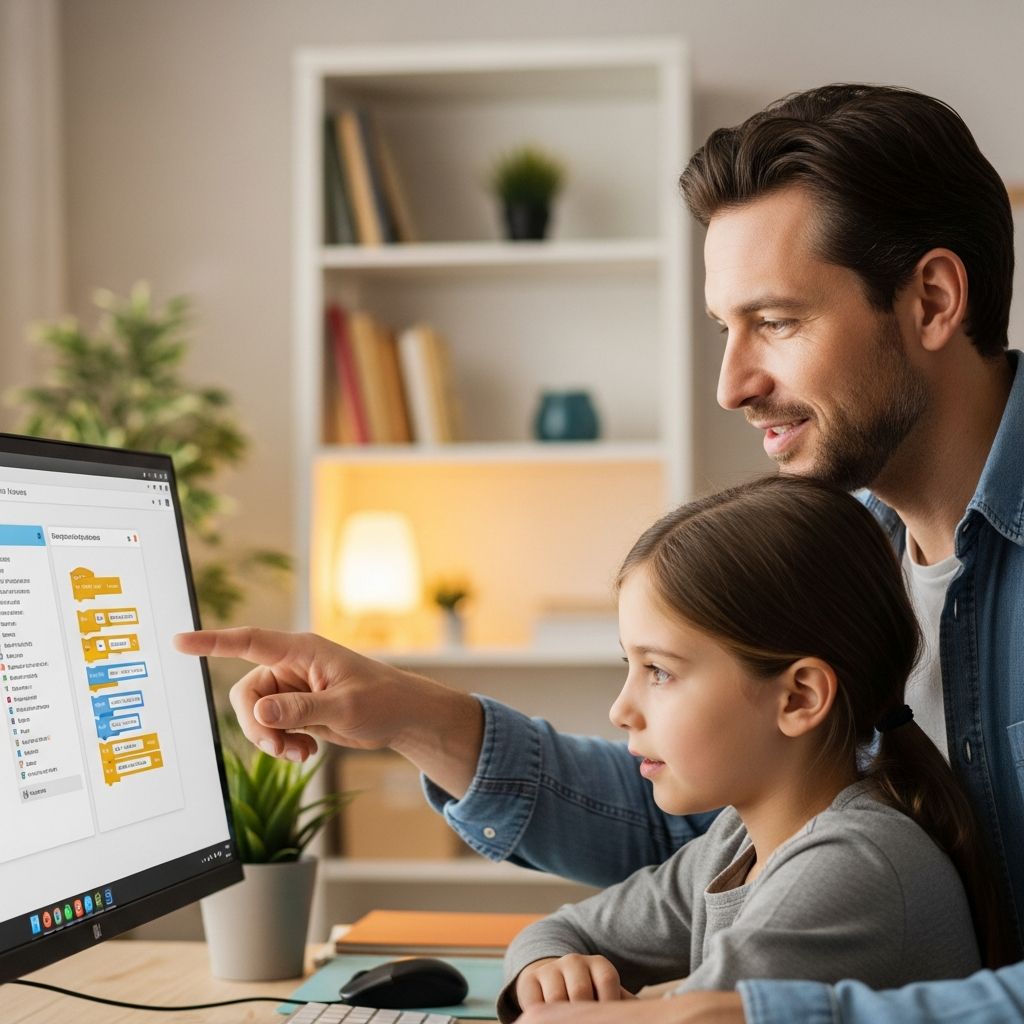
- Scratch: A visual programming environment that teaches coding principles through drag-and-drop interface design, enabling children to create interactive stories, animations, and games
- Tux Paint: An intuitive drawing program designed specifically for young artists, featuring stamps, brushes, and special effects that encourage creative expression
- KTuberling: A creative game that teaches problem-solving and spatial reasoning through picture composition activities
- Kalzium: An interactive periodic table application that makes chemistry education engaging and accessible
- Python and Visual Studio Code: For older children ready for text-based programming, these tools provide professional-grade development environments with extensive community support
Step-by-Step Introduction Strategy for Families
Phase One: Exploration and Familiarization
Begin by allowing your child to explore the desktop environment freely. Point out key interface elements including the taskbar, application menu, and file manager. Explain how these components help organize and access different tools. This low-pressure exploration builds comfort with the environment before introducing structured learning.
Phase Two: Guided Software Discovery
Collaboratively discover educational and creative software together. Let your child choose which applications to explore rather than imposing a rigid curriculum. This autonomy increases engagement and demonstrates that technology serves the user’s interests rather than controlling behavior.
Phase Three: Terminal Introduction
Once comfortable with graphical interfaces, gradually introduce command-line computing. Start with simple, safe commands like listing files or changing directories. Explain that the terminal provides another way to communicate with the computer, developing deeper understanding of how operating systems function. Many children find the terminal exciting once initial intimidation fades.
Phase Four: Programming and Creative Projects
Introduce age-appropriate programming environments. Visual programming languages like Scratch provide immediate, rewarding feedback without requiring complex syntax knowledge. As skills develop, transition toward text-based languages like Python, which powers numerous real-world applications.
Addressing Common Parental Concerns
Parents considering Linux for their children often harbor legitimate questions about the transition. Understanding common concerns helps inform confident decision-making:
| Concern | Reality Check |
|---|---|
| Will my child fall behind if they don’t use Windows? | Modern computing skills transfer easily between operating systems. Learning fundamental concepts like file management, application use, and troubleshooting translates universally. |
| Is Linux difficult for children to learn? | Linux distributions designed for children prioritize intuitive interfaces. Many children find them easier to navigate than traditional systems. |
| Will my child be unable to use school computers? | Schools increasingly recognize Linux’s educational value. Even when schools use other systems, transferable skills ensure rapid adaptation. |
| Are there enough child-friendly programs available? | Linux offers extensive free, open-source educational software covering all major academic subjects and creative pursuits. |
| What if my child has problems? | Active community forums, documentation, and educational resources provide extensive support. Many issues can be resolved through troubleshooting with your child, building problem-solving skills. |
Building Technical Confidence and Independence
One significant advantage of Linux for children lies in its encouragement of independent problem-solving. When children encounter issues, they learn to research solutions, consult documentation, and experiment safely within the system. This builds technical confidence and resilience that extends far beyond computing skills.
Encourage your child to maintain a learning journal documenting new discoveries, useful commands, and solutions they develop. This documentation reinforces learning and creates a personal reference resource. Over time, children recognize themselves as capable technical problem-solvers rather than passive technology consumers.
Open-Source Philosophy and Digital Citizenship
Using Linux exposes children to the open-source movement’s values of transparency, collaboration, and shared knowledge. Many child-focused applications explicitly encourage modifications and experimentation. This philosophical foundation prepares children to understand technology not as mysterious, opaque systems but as tools they can understand, modify, and improve.
As children mature, they may contribute to open-source projects, translating software or creating new applications. This direct participation in technology development builds agency and demonstrates that they can shape technological futures.
Frequently Asked Questions (FAQs)
Q: What age should my child be before introducing Linux?
A: Age-appropriate distributions exist for children as young as two years old. However, parental involvement and guidance should increase for younger children. By age seven, most children can explore Linux independently with periodic parental check-ins.
Q: Can Linux run on older family computers?
A: Yes, Linux’s efficiency makes it ideal for older hardware. Many distributions run smoothly on computers from five to ten years ago, extending their useful life and providing cost-effective learning platforms.
Q: Will my child be able to use Microsoft Office or popular gaming software?
A: Most productivity tasks can be accomplished through open-source alternatives like LibreOffice. Gaming compatibility is more limited but improving. The educational focus of children’s Linux distributions emphasizes learning tools over commercial entertainment.
Q: How do I protect my child from inappropriate content on Linux?
A: Most child-focused distributions include built-in content filtering and parental controls. These tools can be configured to restrict access by time, website category, and specific URLs, providing layered protection.
Q: Can my child eventually transition to a standard Linux distribution?
A: Absolutely. Many children begin with distributions like Sugar or Edubuntu and progress to standard Ubuntu or other distributions as their skills and interests develop. The progression feels natural as computing needs evolve.
Q: What support resources exist for families new to Linux?
A: Extensive community forums, official documentation, and educational websites provide free support. Many distributions include built-in help systems. Additionally, local Linux user groups often welcome families seeking technical assistance and community connection.
References
- 8 Best Linux Distributions for Kids in 2023 — TecMint. 2023. https://www.tecmint.com/best-linux-distributions-for-kids/
- Best Linux Distros for Kids in 2025: Prepare the Young Ones for the Future — Blackdown. 2025. https://www.blackdown.org/best-linux-distros-for-kids/
- From Windows to Linux: A Kid-Friendly Transition Guide — Vocal Media. https://vocal.media/education/from-windows-to-linux-a-kid-friendly-transition-guide

- Integrated M.A. in Applied Linguistics, University of Hyderabad
- 5+ years in editorial, instructional, SEO, and research-based writing
Sneha is a relationships and lifestyle writer with a strong foundation in applied linguistics and certified training in relationship coaching. She brings over five years of writing experience to theskillvault, crafting thoughtful, research-driven content that empowers readers to build healthier relationships, boost emotional well-being, and embrace holistic living. Her writing and insights reflect the belief that beauty, happiness, and wellness…