
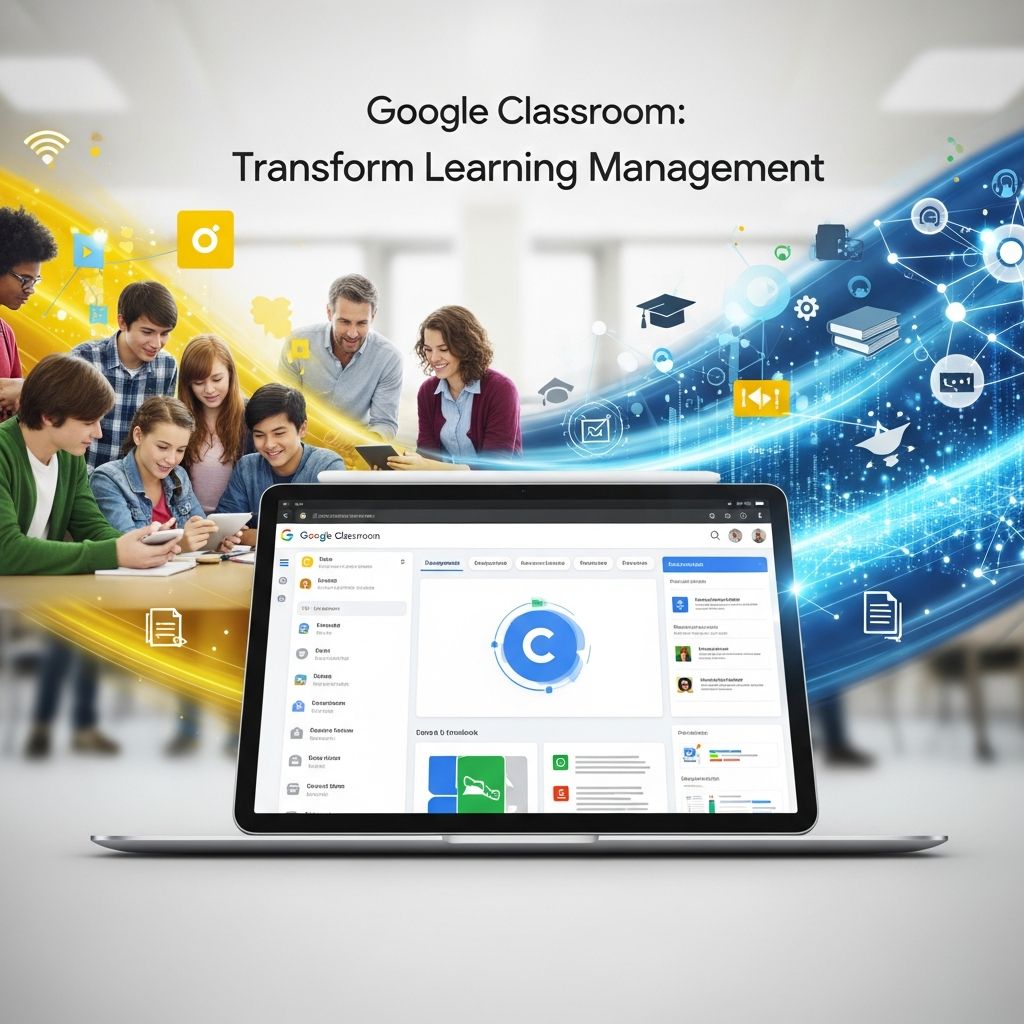
Google Classroom stands as a cornerstone in modern education technology, offering a free, intuitive platform that empowers educators to manage classes digitally. Launched as part of Google Workspace for Education, it facilitates seamless assignment distribution, grading, and communication, reducing paperwork and enhancing collaboration among teachers, students, and parents.
Core Foundations of Google Classroom
At its heart, Google Classroom functions as a blended learning platform designed specifically for educational settings. It integrates deeply with Google Workspace tools like Drive, Docs, Sheets, Slides, Forms, and Calendar, creating a unified ecosystem for teaching and learning. Teachers can establish virtual classes where students join via unique codes or institutional directories, automatically generating dedicated folders in Google Drive for each course.
This setup ensures that all class materials, submissions, and feedback remain organized and accessible. With over 150 million users as of recent reports, its widespread adoption underscores its reliability in both in-person and remote learning scenarios.
Setting Up Your Digital Classroom
Getting started is straightforward. Educators access the platform through their Google account and create a new class with a simple click. Key details like class name, subject, and room number are entered, followed by generating a join code shared with students. For larger institutions, integration with school databases allows bulk enrollment, streamlining administrative tasks.
- Choose class settings: Decide on visibility for enrolled students only or public access.
- Add co-teachers: Collaborate with colleagues by inviting them as co-instructors.
- Customize themes: Personalize the class banner and colors to match your teaching style.
Once set up, the class stream becomes the central hub for announcements, questions, and updates, keeping everyone informed in real-time.
Assignment Creation and Distribution Strategies
One of Google Classroom’s strongest features is its assignment workflow. Teachers craft tasks directly within the platform, attaching resources from Google Drive, YouTube videos, or external links. Due dates, points, and instructions are specified, with options for individual or group submissions.
Advanced options include creating quizzes via Google Forms for automatic grading, setting topics to categorize assignments (e.g., ‘Unit 1: Introduction to Algebra’), and scheduling posts for future release. This flexibility supports differentiated instruction, allowing teachers to reuse materials across classes or modify them for specific needs.
| Assignment Type | Description | Best Use Case |
|---|---|---|
| Material | Static content like readings or videos | Lesson introductions |
| Assignment | Submittable work with grading | Homework or projects |
| Quiz | Multiple-choice or short-answer assessments | Formative checks |
| Question | Open-ended discussions | Class engagement |
Students receive notifications via email or the mobile app, ensuring timely access. Submissions are turned in electronically, with revision histories visible to track progress.
Grading and Feedback Mechanisms
Efficient grading sets Google Classroom apart. Teachers review submissions in a dedicated queue, adding comments, private notes, or rubric-based scores. The platform supports rubrics for consistent evaluation and flow-based grading for mastery-oriented learning.
Real-time feedback fosters growth mindset, as students see comments instantly and can revise work before final submission. Integration with Google Meet allows live sessions for clarification, blending synchronous and asynchronous elements seamlessly.
- Copy grades to Sheets: Export for further analysis.
- Originality reports: Check for plagiarism using built-in tools.
- Return work: Revert to students post-grading with feedback attached.
Enhancing Collaboration and Communication
Beyond assignments, Google Classroom promotes interaction through its stream feature. Teachers post announcements, turn topics into questions for discussions, or share resources. Students reply, like posts, or email individually, building a community feel.
Guardian summaries keep parents looped in with weekly emails on missing work and progress. Video meetings via Meet integrate directly, supporting hybrid models where some attend live while others engage asynchronously.
Advanced Tools for Modern Educators
Recent updates introduce AI-powered features like NotebookLM for generating study guides and interactive tutors, elevating personalized learning. The API enables developers to automate rosters, generate reports, or integrate third-party tools.
Topics organization groups related classwork, making navigation intuitive. For education leaders, visitor access mirrors co-teacher permissions without full control, ideal for observations.
Student Experience and Engagement
From the learner’s perspective, the interface is clean and mobile-friendly. A dashboard shows upcoming tasks, grades, and feedback. Students organize notes, share resources with peers, and track originality reports, promoting accountability.
Engagement spikes with multimedia attachments and collaborative docs, where multiple students edit in real-time. Calendar sync ensures deadlines are visible across devices.
Parental Involvement and Oversight
Parents receive automated emails summarizing assignments, due dates, and performance. They view class streams and announcements without full access to grades, respecting privacy while staying informed.
This transparency strengthens home-school partnerships, with options to opt-in per class for targeted updates.
Best Practices for Effective Implementation
To maximize impact, start small: pilot one class before scaling. Train students on navigation and digital citizenship. Use data from reports to refine instruction, and regularly archive completed classes for records.
- Communicate expectations clearly in the ‘About’ tab.
- Incorporate polls and questions for formative assessment.
- Reuse templates for recurring assignments.
Frequently Asked Questions
Can anyone use Google Classroom?
Yes, it’s free for personal Google accounts, but schools use Google Workspace for Education for advanced admin features and unlimited storage.
How do students join a class?
They enter a class code provided by the teacher or get auto-enrolled via school domain.
Does it support grading rubrics?
Absolutely; create custom rubrics for consistent, criteria-based assessments.
Is mobile access available?
Yes, dedicated apps for iOS and Android provide full functionality on the go.
Can parents see grades?
Guardian emails show summaries but not detailed grades for privacy.
Future Directions and Integrations
Google continues evolving Classroom with AI enhancements and deeper Workspace ties. Expect more analytics, accessibility tools, and global language support, solidifying its role in edtech.
In summary, Google Classroom democratizes quality education by centralizing tools that save time and boost outcomes. Whether for daily management or crisis response, it adapts to diverse needs.
References
- Google Classroom – Wikipedia — Wikipedia. 2023-10-15. https://en.wikipedia.org/wiki/Google_Classroom
- About Classroom – Google Help — Google Support. 2024-01-20. https://support.google.com/edu/classroom/answer/6020279?hl=en
- Google Classroom – EdTech Books — EdTech Books. 2023-05-10. https://edtechbooks.org/onlinetools/google-classroom
- Overview | Google Classroom API — Google Developers. 2024-03-05. https://developers.google.com/workspace/classroom/guides/get-started
- What is Google Classroom? | Tech & Learning — Tech Learning. 2023-08-12. https://www.techlearning.com/features/what-is-google-classroom

Medha Deb is an editor with a master's degree in Applied Linguistics from the University of Hyderabad. She believes that her qualification has helped her develop a deep understanding of language and its application in various contexts. Medha specializes in the areas of beauty, health, sports, and wellness and is committed to ensuring that the content on the website is…